hp laptop isn't connecting to wifi
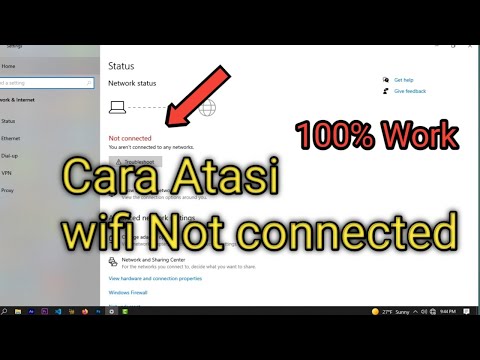
Title: Cara atasi WiFi tidak bisa connect di laptop not connected
Channel: ijal tutorial
Cara atasi WiFi tidak bisa connect di laptop not connected by ijal tutorial
hp laptop is not connecting to wifi, hp laptop isn t connecting to wifi, hp laptop is not connecting to internet, my hp laptop is not connecting to wifi windows 11, my hp laptop is not connecting to wifi windows 10, my hp laptop is not connecting to wifi windows 7, my hp pavilion laptop is not connecting to wifi, my hp laptop is not getting connected to wifi, what to do if hp laptop is not connecting to wifi, hp laptop won't connect to wifi
HP Laptop WiFi Nightmare? Solved! (Guaranteed)
HP Laptop WiFi Woes Vanquished! (Seriously, It's Fixable)
Ever stared longingly at that glowing WiFi icon, cursing its capricious nature? You're not alone. Countless HP laptop users experience the infuriating dance of dropped connections and maddeningly slow speeds. But before you chuck your trusty machine out the window, breathe easy. There’s light at the end of the tunnel! Today, we'll decode common WiFi problems and equip you with the tools to regain wireless serenity.
Unmasking the WiFi Gremlins: What's REALLY Going On?
First things first, let’s acknowledge the enemy. HP laptops, remarkable machines though they are, can sometimes stumble in the WiFi realm. The culprits are varied. It could be driver issues, hardware malfunctions, or even interference from other devices. Often, it's a simple configuration glitch. Instead of panicking, let’s methodically investigate the likely suspects. This diagnostic process is crucial. It’s like being a detective, tracking down clues.
Is Your Driver the Devil? Updating & Troubleshooting
Driver problems are frequently the source of WiFi woes. Think of the driver as the translator, communicating between your laptop and the WiFi adapter. When this translation falters, connection problems arise. Because of this, updating your WiFi driver is a crucial first step.
Here's how:
- Go to Device Manager. You can search for it in the Windows search bar.
- Expand "Network Adapters."
- Right-click your WiFi adapter (likely something like "Intel Wireless-AC 9560").
- Select "Update driver."
- Choose to "Search automatically for drivers."
If that doesn't work, consider manually downloading the latest driver from the HP support website. Be sure to select your specific laptop model. Otherwise, uninstalling and reinstalling the driver can often do the trick. Moreover, sometimes, rolling back to a previous driver version can resolve incompatibility issues. Therefore, explore both options.
Signal Strength Sabotage: Optimizing Your Connection
A weak WiFi signal is another key player in this drama. Your laptop may be struggling to communicate with your router. Consequently, repositioning your laptop or router is an easy fix. Experiment with different locations. Ideally, your laptop should be within a reasonable distance of your router. Furthermore, check for physical obstructions. Walls and metal objects can certainly impede signal strength. Also, avoid placing your router inside a cabinet or a confined space.
Router Renaissance: Breathe New Life into Your Network
Your router could be the bottleneck, not your laptop. In other words, a router reset is a simple yet powerful maneuver. Unplug your router for 30 seconds. Then, plug it back in. This process often clears temporary glitches. However, ensure your router's firmware is up to date. Outdated firmware can introduce vulnerabilities and performance issues. To update, access your router's configuration page via your web browser. Review the documentation.
The Interference Inferno: Clearing the Airwaves
WiFi signals are susceptible to interference. Microwave ovens, Bluetooth devices, and even other WiFi networks can wreak havoc. Because of this, identify potential interference sources. Attempt to move your laptop away from these culprits. Change your router's WiFi channel if needed. Most routers automatically select a channel. Nevertheless, manual channel selection can sometimes improve performance. To determine the best channel, use a WiFi analyzer app on your smartphone.
Power Settings Puzzle: Balancing Battery & WiFi
Your laptop's power settings can also impact your WiFi performance. It’s a subtle issue, but it’s worth considering. Ensure your power plan isn't overly aggressive. For example, it might be throttling your WiFi adapter to save battery. You can adjust these settings in the Control Panel (or Settings app). Look for options related to power management and WiFi adapter performance.
The Nuclear Option: Factory Reset (Use Only as a Last Resort)
As a final resort, consider a factory reset. But consider this with caution. This process wipes your laptop's data. Before doing this, back up all your important files. However, a factory reset restores your system to its original state. Subsequently, this often resolves deep-seated software conflicts. Access the reset options through your Windows Settings. Follow the on-screen instructions carefully.
Troubleshooting Tips for a Smooth Ride
- Restart your laptop frequently. It's a simple solution, but it works wonders.
- Disable and then enable your WiFi adapter. Do this in Device Manager.
- Run the Windows Network Troubleshooter. It can often identify and fix problems automatically.
- Check for hardware damage. A damaged WiFi adapter is a rare occurrence. Though, it's a possibility.
- Consider contacting HP support if problems persist. They can offer specialized assistance.
Victory is Yours!
So, there you have it. WiFi woes are now manageable. By methodically addressing these issues, most HP laptop WiFi problems are solvable. Remember, patience is key. Step-by-step investigation will lead you to the solution. With some effort, you can enjoy a fast and reliable wireless connection. Therefore, ditch the frustration and embrace seamless connectivity. Enjoy the benefits!
iPhone to Laptop WiFi Password: The Easiest Trick EVER!HP Laptop WiFi Nightmare? Solved! (Guaranteed)
Hey there, fellow tech travelers! Ever felt like your HP laptop is a mischievous gremlin, deliberately sabotaging your Wi-Fi connection right when you need it most? You're not alone! We've all been there, staring blankly at the blinking Wi-Fi icon, wondering if the internet gods have personally targeted us. But guess what? We’ve got your back. This isn’t just another generic troubleshooting guide; it’s a survival manual, a lifeline, a… well, you get the picture! We’re diving deep into the HP laptop Wi-Fi abyss and emerging victorious on the other side. Let's get your connection humming like a well-oiled digital machine!
1. The Dreaded Disconnect: Recognizing the Symptoms
Before we can fix the problem, we need to diagnose it. Think of this like a doctor's visit. What symptoms are you experiencing? Is your Wi-Fi constantly dropping? Is the connection slow as molasses? Or perhaps the dreaded "No Internet, Secured" message keeps popping up like a digital pest? These are all classic symptoms of an HP laptop Wi-Fi nightmare. Knowing the signs is half the battle won!
2. Is It Your HP Laptop's Fault? Or, Is It the Internet?
Let's be honest; sometimes, the problem isn't your laptop. Before you tear your hair out, perform a quick reality check. Are other devices in your home experiencing Wi-Fi woes? If your phone, tablet, and smart toaster are all struggling, the issue likely lies with your internet service provider (ISP) or your router. Try restarting your router – that’s the digital equivalent of a good night's sleep and often works wonders! If other devices are working fine, then we can safely assume your HP laptop is the culprit.
3. The Power of the Restart: A Digital Reset Button
It sounds laughably simple, but a restart can be the magical elixir your HP laptop needs. Think of it like giving your computer a digital "reset." Close all unnecessary programs, save your work (important!), and then restart your laptop. This simple act can often clear up temporary glitches and software conflicts that might be causing Wi-Fi trouble. Consider it the digital equivalent of hitting the "refresh" button on life.
4. Driver Drama: Updating Your WiFi Driver
Drivers are the unsung heroes (or villains, depending on the situation) of the tech world. They're the software "translators" that allow your laptop's hardware to communicate with your operating system. An outdated or corrupted Wi-Fi driver can be a major culprit in connection problems. Here’s how to update it on Windows:
- Step 1: Right-click the Start button and select "Device Manager."
- Step 2: Expand "Network adapters."
- Step 3: Right-click on your Wi-Fi adapter (it'll have a name like "Intel Wireless" or "Realtek Wireless").
- Step 4: Select "Update driver." Choose "Search automatically for drivers." Windows will try to find and install the latest driver.
- Step 5: If that doesn't work, try "Browse my computer for drivers" and navigate to your laptop manufacturer’s website to download the latest drivers.
5. The Troubleshooter's Touch: Windows Built-in Fixes
Windows has a secret weapon against Wi-Fi woes: the built-in troubleshooter. It’s like having a digital handyman ready to diagnose and fix common problems. To access it:
- Step 1: Right-click the Wi-Fi icon in your system tray (bottom right corner of your screen).
- Step 2: Select "Troubleshoot problems."
- Step 3: Follow the on-screen prompts.
The troubleshooter will attempt to identify and resolve any issues. It's like having a robot doctor prescribing medicine for your Wi-Fi ailments.
6. Airplane Mode: The Accidental Culprit
Airplane Mode isn’t just for flying anymore! Accidentally activating Airplane Mode can also disable your Wi-Fi. Double-check that Airplane Mode is turned off. You can usually find this setting in the Action Center (click the notification icon in the bottom-right corner of your screen) or in your Network settings.
7. Network Settings: A Deep Dive
Let's get a little techy. Sometimes, the culprit is lurking in your network settings. These settings control how your laptop connects to the internet. Here's a quick checklist:
- SSID and Password: Make sure you're connected to the correct Wi-Fi network and that you're entering the password correctly. It sounds simple, but it's a common mistake!
- IP Configuration: Ensure your IP address is set to "Obtain an IP address automatically" (this is the default setting).
- DNS Settings: Sometimes, changing your DNS settings can improve connectivity. Try using Google's public DNS servers (8.8.8.8 and 8.8.4.4). You can usually find these settings in your network adapter properties.
8. Firewall Frustrations: Checking Your Defense
Your built-in Windows Firewall (or any third-party firewall you might have installed) can sometimes block Wi-Fi connections. Check your firewall settings and make sure your HP laptop's Wi-Fi adapter is allowed to communicate freely. It's like making sure your friend is on the guest list!
9. Signal Struggles: Optimizing Your Router Placement
Think of your Wi-Fi signal as a wave washing over your house. It’s strongest closest to the source and can become weak as it travels through walls and obstacles. Placing your router centrally and avoiding obstructions can dramatically improve your connection.
10. Hardware Hurdles: Physical Damage and Internal Issues
Let's be honest, sometimes the issue might lie deeper, perhaps in the physical components of your laptop. Check the antenna connections inside your laptop, if you have the experience. These physical components can sometimes get damaged, or the Wi-Fi card itself might need replacing. If you're handy, you could try this yourself. If not, consider taking your laptop to a repair shop.
11. Malware Mayhem: Scan Your System
Malware can wreak havoc on your internet connection, slowing things down and interfering with your Wi-Fi. Run a full scan using your antivirus software. It's like giving your computer a thorough check-up! Ensure your antivirus software is up-to-date.
12. Interference Intruders: Other Devices and Their Influence
Your Wi-Fi signal can be jostled by other devices, especially those operating on the same frequency. Microwaves, Bluetooth devices, and other electronics can sometimes interfere with your Wi-Fi signal. Try moving your HP laptop away from these potential culprits.
13. Factory Reset: The Nuclear Option
If all else fails, a factory reset can be a last resort. This essentially restores your laptop to its original settings, wiping out all your data (so back up everything important!). It's like hitting the "reset" button on your life but much more technical! This can often resolve deeply rooted software issues.
14. Seek Professional Help: When to Call an Expert
Sometimes, problems are just beyond our grasp. If you’ve tried everything on this list and your HP laptop Wi-Fi continues to misbehave, it might be time to consult a professional. A qualified technician can diagnose hardware issues (like a faulty Wi-Fi card) or more complex software problems that you can't fix yourself.
15. The Final Victory: Claiming Your WiFi Freedom
You've made it! By systematically working through these steps, we're confident that you can reclaim your Wi-Fi freedom. Remember, troubleshooting is a process. Be patient, methodical, and don't give up! The internet awaits!
Conclusion: Your WiFi is Ready!
So, there you have it! We've navigated the treacherous waters of HP laptop Wi-Fi woes, armed you with the knowledge and tools to conquer any connection problem. Remember, the key is to be persistent, patient, and systematic in your approach. Now go forth and surf the web with the confidence of a seasoned digital explorer. We believe in you!
Frequently Asked Questions (FAQs)
1. My HP laptop connects to Wi-Fi, but the internet is still slow. What can I do?
- Check your internet speed. It might be your ISP. Also, check for running background applications and run a speed test online. Consider restarting your router.
2. Why is my HP laptop's Wi-Fi always dropping the connection?
- This could be due to a variety of issues: an unstable Wi-Fi signal, an outdated driver, hardware problems with the Wi-Fi adapter, or interference from other devices. Work through the steps outlined above to identify the root cause.
3. My HP laptop can't "see" my Wi-Fi network. What's wrong?
- Ensure Wi-Fi is enabled on your laptop and that you're within range of your Wi-Fi router. Double-check the router's network name (SSID) and try restarting your router. Also, check if the Wi-Fi adapter is enabled in Device Manager.
4. How do I update my HP laptop's Wi-Fi driver?
- Follow the
Perbaiki Masalah Wi-Fi Laptop HP Tidak Berfungsi di Windows 1087

By FIXsage Perbaiki Masalah Wi-Fi Laptop HP Tidak Berfungsi di Windows 1087 by FIXsage
Cara Memperbaiki Laptop HP Tidak Bisa Terhubung ke WiFi Windows 11 BARU 2025

By TechFixIT Cara Memperbaiki Laptop HP Tidak Bisa Terhubung ke WiFi Windows 11 BARU 2025 by TechFixIT
HP computer won't connect to wifi EASY FIX

By Dakota HP computer won't connect to wifi EASY FIX by Dakota

Title: Cara mengatasi Laptop Tidak Bisa Tersambung ke Wifi di Windows 11 & Windows 10 tutorial internet
Channel: Rifki Els
Cara mengatasi Laptop Tidak Bisa Tersambung ke Wifi di Windows 11 & Windows 10 tutorial internet by Rifki Els
My Laptop Work
HP Laptop WiFi Nightmare? Solved! (Guaranteed)
Introduction: Reclaiming Your Online Sanity
Are you wrestling with the frustrating reality of an HP laptop that refuses to cooperate with your Wi-Fi network? Is the constant buffering, dropped connections, and intermittent access turning your daily tasks into an exercise in patience? If so, you're not alone. Countless users experience the same digital anguish. Fortunately, we’ve compiled a comprehensive guide, packed with proven solutions, that will transform your HP laptop's Wi-Fi performance from a frustrating ordeal to a seamless, reliable connection. We'll move beyond the generic troubleshooting steps and delve into the specifics, equipping you with the knowledge and tools to banish those Wi-Fi woes for good. Prepare to rediscover the joy of effortless browsing, streaming, and online productivity.
Diagnosing the Digital Demons: Pinpointing the Root Cause
Before we unleash the troubleshooting arsenal, let's first understand the common culprits behind Wi-Fi connectivity gremlins. Knowing the potential sources of the problem is vital for effective solutions.
- Driver Dilemmas: Outdated, corrupted, or incompatible network adapter drivers are frequent causes of Wi-Fi failures. These essential software components act as the intermediary between your laptop's hardware and your Wi-Fi network.
- Router Rage: Your router, the gateway to the internet, can be the source of the problem. Firmware glitches, configuration errors, or hardware limitations of your internet router can all undermine your Wi-Fi experience.
- Network Interference: Wi-Fi signals are susceptible to interference from other electronic devices, physical obstructions like walls, and even the frequency bands used by your microwave oven.
- Operating System Obstacles: The operating system itself, whether it's Windows 10, Windows 11, or an older version, has its own settings that can affect Wi-Fi performance. These settings can sometimes unintentionally hinder your network connection.
Step-by-Step Solutions: Conquering Wi-Fi Challenges
Now, let's get down to the practical solutions that will restore your HP laptop's Wi-Fi prowess.
1. Driver Detective: Updating and Reinstalling Your Network Adapter Driver
The network adapter driver is paramount. Think of it as the translator that allows your laptop to "speak" Wi-Fi. Here's how to navigate driver issues:
- Identify Your Network Adapter: Open the Device Manager (search for it in the Windows search bar). Expand the "Network adapters" section. You'll see a list of network adapters. Identify your wireless adapter; it usually has "Wireless" or "Wi-Fi" in its name (e.g., "Intel(R) Wireless-AC 9560").
- Update the Driver: Right-click on your wireless adapter and select "Update driver." Choose "Search automatically for drivers." Windows will attempt to find and install the latest driver. If successful, restart your laptop.
- Manual Driver Installation: If the automatic update fails, visit the HP support website (support.hp.com). Enter your laptop's model number or serial number to access the download section. Download the most up-to-date wireless network adapter driver for your operating system, and then install it manually.
- Driver Rollback: If recent driver updates seem to have caused the Wi-Fi problems, right-click on your wireless adapter in Device Manager, select "Properties," go to the "Driver" tab, and click "Roll Back Driver." This action reverts to the previous driver version.
- Driver Reinstallation: If all else fails, uninstall your wireless adapter driver from Device Manager (right-click and select “Uninstall device”). Then, reboot your laptop. Windows will attempt to automatically reinstall a driver. If it doesn't, then reinstall the driver from the HP support website, as shown above.
2. Router Rituals: Rebooting and Reconfiguring Your Network Gateway
Your router directs traffic. Sometimes, all it needs is a fresh start.
- The Basic Reboot: Unplug your router and modem for at least 60 seconds. Then, plug the modem back in and wait for it to power on completely. After that, then plug in your router and allow it to fully boot up.
- Router Firmware Update: Access your router's configuration settings (usually by typing its IP address into your web browser). Find the "Firmware Update" section, and check for and install any available updates. This updates the router's operating software.
- Channel Selection: Within your router's settings, go to the Wireless settings. Change the Wi-Fi channel. The ideal channels (for 2.4 GHz) are 1, 6, and 11. Try cycling through these channels one at a time to see if it improves your connection. You may have to consult your router manual or a simple web search to discover how to modify these parameters.
3. Signal Strength Strategies: Reducing Interference and Optimizing Placement
Wireless signals are fickle. Obstructions and interference matter.
- Physical Obstacle Removal: Move your laptop closer to the router. Try to eliminate any solid objects between the devices, such as walls.
- Interference Identification: Identify other devices that might be interfering with your Wi-Fi signal, such as microwaves, Bluetooth devices, and other routers. Try to position your laptop at a distance from these types of devices.
- Antenna Adjustment (If Applicable): Some routers have external antennas. Adjust their position; experiment to find the best signal coverage.
4. Wireless Settings Wisdom: Fine-Tuning Your Network Adapter
Sometimes, adjustments within your laptop's operating system are needed.
- Power Management Tweaks: In Device Manager, right-click on your wireless adapter, select "Properties," go to the "Power Management" tab, and uncheck "Allow the computer to turn off this device to save power."
- Wireless Adapter Advanced Settings: In the Device Manager, in the Properties window for your adapter, go to the "Advanced" tab. Experiment with these settings:
- 802.11n/ac Wireless Mode: Set this to "Auto" or to the highest compatible setting (e.g., 802.11ac) for faster speeds.
- Wireless Mode: Ensure this is set to the correct mode for your router (e.g., "802.11 a/b/g/n/ac").
- Forget and Reconnect to the Network: In the Windows Wi-Fi settings (search for "Wi-Fi settings"), forget your Wi-Fi network and then reconnect, using your password.
5. Network Troubleshooter: Leveraging Windows Built-in Diagnostics
Windows has a built-in troubleshooter that can often automatically detect and resolve Wi-Fi issues.
- Run the Troubleshooter: Go to "Settings" (Windows Key + I), then "Network & Internet," and then "Status." Scroll down and click "Network troubleshooter." Follow the on-screen instructions.
6. A Last Resort: System Restore and Factory Reset
Consider these as last resorts, as they can lead to data loss. Make sure to back up anything before proceeding.
- System Restore: This reverts your system to a previous point in time, potentially undoing changes that have caused Wi-Fi problems. Search for “Create a restore point” in the Windows search bar. Click the "System Restore" button. Choose a restore point from a time when your Wi-Fi was working correctly.
- Factory Reset: This resets your laptop to its original factory settings. It's a drastic measure but can fix persistent software issues. Search for “Reset this PC” in the Windows search bar. Follow the on-screen instructions, choosing the option to keep your files or to remove everything.
7. Hardware Considerations: Evaluating the Network Adapter
In rare cases, the actual hardware may be the problem.
- External USB Wi-Fi Adapter: As a quick test for your existing network adapter, you could try installing a USB Wi-Fi adapter. If a USB adapter works, there may be a significant issue with your internal Wi-Fi adapter.
- Contacting HP Support: If all else fails and you believe the network card of your laptop is defective, contact HP support. They can provide further assistance or, if necessary, repair hardware.
Conclusion: Enjoying a Seamless Online Experience
By diligently following these troubleshooting steps, you can conquer the Wi-Fi demons and restore your HP laptop's connectivity to its former glory. Remember to be patient, methodical, and persistent. With each step you take, you're gaining control. You're empowering yourself to troubleshoot and resolve these issues. The reward? The freedom and reliability of a solid Wi-Fi connection, enabling you to work, play, and connect effortlessly online.
