cara membobol wifi tanpa aplikasi di laptop
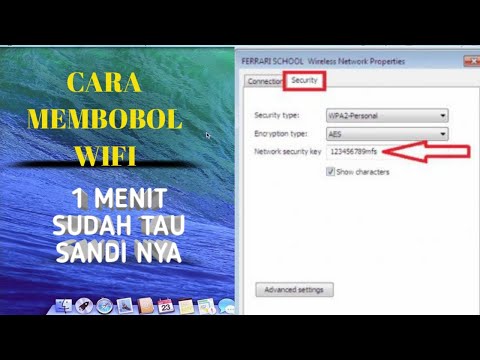
Title: CARA MEMBOBOL WIFI DI LAPTOP
Channel: Amufa Channel
CARA MEMBOBOL WIFI DI LAPTOP by Amufa Channel
Unlock Your WiFi: No App Needed! (Laptop Trick Inside)
Bypassing the Bytes: Unleashing Your Laptop's Secret WiFi Weapon
Ever felt tethered to your WiFi, craving an escape from the usual app-laden limitations? You're not alone! Many of us grapple with connectivity woes. However, I've stumbled upon a nifty trick, a digital key, if you will. It unlocks hidden WiFi potential, no invasive app downloads required. This is how you take control of your laptop connectivity.
The Hidden Chamber of Your Machine: A Gateway to Freedom
First, let's understand the problem. We often think we need an app for everything. Consequently, we become reliant on them. But what if I told you that the solution resides within your system? Because it does! Your laptop is a powerful tool. It has built-in capabilities that often go unnoticed. Think of it as a hidden chamber. Inside, lies the power to conquer WiFi limitations.
Unveiling the Command Prompt's Enchantment: Your Digital Wand
Now, grab your digital wand—the Command Prompt. It’s the key to this secret. Don't let the technical name intimidate you. Initially, it might seem complex. But I’ll guide you through it. Open the Command Prompt. You can easily find it by searching in your Windows search bar. You can also typically find it within the Accessories menu. Next, you'll need administrative privileges.
The Magic Words: A Series of Whispered Commands
Once the Command Prompt is open, type the following command. Be precise; accuracy is key: netsh wlan show profiles. Then, press Enter. This command reveals a list of all the WiFi profiles previously saved on your laptop. Specifically, it shows you everything.
Decoding the Secrets: Finding Your WiFi Key
You should see a list of WiFi networks. Look for the name of the network you want. Once you find it, use this command: netsh wlan show profile name="YourNetworkName" key=clear. Replace "YourNetworkName" with the exact name of your WiFi network. Again, press Enter after typing the command. After that, you'll see a detailed profile for your WiFi network.
Uncloaking the Cipher: The Key to the Kingdom
In this information, you'll find the most important detail: the security key. It's located under "Key Content." This is your WiFi password. Now you've successfully retrieved your password. It's that simple.
Beyond the Basics: Practical Applications and Hidden Perks
So, what can you do with this newfound knowledge? Well, the benefits are numerous. Firstly, you can share your WiFi password with trusted friends and family. Secondly, this is helpful if you've forgotten your password. You no longer need to reset your router or call tech support. Beyond that, consider security. You can verify that the password hasn't been changed without your knowledge. Furthermore, you can use this method on any recent Windows laptop. The technique is universal.
Troubleshooting the Digital Maze: Common Hiccups and Solutions
Occasionally, you may encounter some issues. Perhaps the Command Prompt doesn't open correctly. Or maybe the commands don't work. Firstly, double-check that you're running the Command Prompt as an administrator. Secondly, make sure you've typed the commands correctly. Thirdly, check for any typos. Finally, ensure your network profile is saved on your laptop. If issues persist, consult online resources. Many forums and tutorials can help troubleshoot.
The Art of Digital Freedom: Mastering Your Connection
In conclusion, you've learned a valuable skill. You can now access your WiFi password without external apps. This simple trick empowers you. You’ve freed yourself from unnecessary dependencies. Consider this a step toward digital independence. Embrace the power of your laptop. Become the master of your connection. You now understand something not everyone does. Remember, technology is at its best when it serves you. So go forth, connect with confidence, and enjoy the newfound freedom.
Laptop WiFi Hotspot: The Secret Trick Google Doesn't Want You to Know!Unlock Your WiFi: No App Needed! (Laptop Trick Inside)
Hey folks! Ever felt like your Wi-Fi signal is playing a cruel game of hide-and-seek? We've all been there. That incessant buffering, the frustrating "no internet" message, the urge to hurl your laptop across the room – it's a digital nightmare. But what if I told you there’s a way to troubleshoot your Wi-Fi woes and get your connection back on track, without downloading a single app? Sounds too good to be true? Trust me, it's not. We're about to dive into a nifty laptop trick that’ll have you surfing the web smoothly in no time.
1. The Frustration of a Weak Wi-Fi Signal: A Universal Headache
Let’s face it; a shaky Wi-Fi connection is like trying to eat soup with a fork. Utterly frustrating! We rely on Wi-Fi for everything these days, from binge-watching our favorite shows to staying connected with loved ones and, of course, getting our work done. When the signal decides to take a vacation, the world seems to grind to a halt. We know the signs: slow loading times, interrupted video calls, and the agonizing "connection lost" notification. It's maddening, right? It's a universal experience, this battle against the digital void.
2. Why Apps Aren't Always the Answer (And What Is?)
You might think, "There's an app for that!" And maybe there is. But do you really need another piece of software cluttering up your device? Oftentimes, these Wi-Fi troubleshooting apps are just glorified band-aids, masking the underlying problem instead of fixing it. They might offer helpful features, but they often come with a price: resource drain, potential privacy concerns, and the need to constantly update. What if I told you that the solution often lies within your laptop's built-in capabilities? That's right, no app downloads required. This is where the trick comes in.
3. The Secret Weapon: Your Laptop's Built-In Diagnostics
Most laptops, whether you're rocking a Windows machine or a Mac, come equipped with diagnostic tools. They're hidden, like a secret compartment in a pirate's chest, but they're there, ready to help. These tools can often pinpoint the source of your Wi-Fi woes, whether it's a weak signal, a conflict with another device, or a problem with your network settings. We’ll be focusing on a method that, while simple, is often overlooked and surprisingly effective.
4. Windows Users: Unleashing the Power of the Troubleshooter
For those of us with Windows laptops, this is where it gets interesting. Windows has a built-in network troubleshooter that’s like a digital detective, sniffing out the culprits behind your Wi-Fi woes. It's surprisingly effective at identifying and often resolving common connection problems.
- Step 1: Accessing the Troubleshooter: Click on the Wi-Fi icon in your system tray (usually in the bottom right corner of your screen). Right-click on the Wi-Fi icon and select "Troubleshoot problems." Alternatively, you can go to Settings > Network & Internet > Status, then click "Network troubleshooter".
- Step 2: Let the Magic Happen: Windows will begin scanning for issues. This might take a few moments. Be patient!
- Step 3: Follow the Prompts: The troubleshooter will present potential solutions. Often, it will automatically fix the problem. If not, it might offer suggestions, like resetting your network adapter or restarting your router.
5. Mac Users: Navigating Network Diagnostics with Ease
Don't worry, Mac users, we haven't forgotten about you! While the steps might be slightly different, the principle is the same: leveraging your operating system's built-in tools. Macs also offer a powerful network diagnostic tool.
- Step 1: Open Network Utility: You can find this app by opening Launchpad and typing “Network Utility” or finding it through Spotlight search (Cmd + Spacebar).
- Step 2: Select "Wi-Fi" (formerly "AirPort"): In Network Utility, choose the "Wi-Fi" tab (or "AirPort" if your version uses it).
- Step 3: Run the Diagnostics: You'll likely see options to diagnose your network. Follow the prompts. It will analyze your connection and suggest any potential problems.
6. Beyond Troubleshooting: Checking the Basics
Sometimes, the solution is simpler than we think. Before you dive into the diagnostic tools, take a moment to check the basics.
- Is Your Router on? I know, it sounds silly, but it happens! Make sure your router is powered on and that the indicator lights are showing that it’s functioning correctly.
- Is Your Router's Internet Connection Established? Verify that your router is connected to the Internet. If using a modem, check its light status.
- Distance Matters: Are you too far from your router? Walls, especially those made of concrete or brick, can weaken the signal. Try moving closer to the router. Think of it like speaking in a crowded room; the closer you are, the easier it is to be heard.
- Restart, Restart, Restart: This is often the first (and sometimes only) step needed. Restart your router and your laptop. It’s like hitting the reset button on your brain after a long day.
7. Diving Deeper: Advanced Troubleshooting Techniques (For the Brave)
If the basic steps don't quite do the trick, it's time to get a little more advanced. Don’t worry, we're not going to ask you to become a network engineer overnight.
- Update Your Drivers: Outdated network adapter drivers can cause problems. Go to Device Manager (Windows) or check for updates through System Preferences (Mac).
- Check for Interference: Other devices, like microwaves, Bluetooth devices, and even some appliances, can interfere with your Wi-Fi signal. Try moving your router away from these sources. Picture your Wi-Fi signal as a voice trying to cut through the noise of a busy party; the more noise, the harder it is to be heard.
- Change Your Router's Channel: Routers broadcast on different channels. Sometimes, the channel is congested. You may need to log in to your router's settings (usually by typing its IP address into your browser) and change the channel to one that's less crowded.
8. The "Laptop Trick" Unveiled: A Hidden Gem
Here's the real secret sauce, the "laptop trick" we promised. It's a technique that involves resetting your network settings. This is an action that can often swiftly resolve connection problems.
- Windows: Go to Settings > Network & Internet > Advanced Network Settings > Network reset. This step will reset your network adapters to their factory settings.
- Mac: Go to System Preferences > Network. Select your Wi-Fi connection, and then remove it by pressing the minus icon. Then, re-add the Wi-Fi network.
This process is a bit like hitting Ctrl+Alt+Delete on your network connection - it will effectively restart the network connection. While this process may require you to re-enter your Wi-Fi password, it often does the trick!
9. Optimizing Your Router's Settings for Peak Performance
Once you've established a stable connection, it’s time to optimize your router for optimal performance.
- Secure Your Network: Make sure your Wi-Fi network is protected with a strong password. This prevents unauthorized access and potential interference.
- Router Placement: Position your router in a central location, away from walls and obstructions.
- Update Your Router's Firmware: Router manufacturers frequently release firmware updates to improve performance and security. Check your router's manual to see how to update its firmware.
10. The Power of a Strong Password: Protecting Your Digital Fortress
A strong password is your castle's drawbridge. It keeps the bad guys out. Use a combination of uppercase and lowercase letters, numbers, and symbols, and make it at least 12 characters long. Change your password regularly. Avoid using easily guessable information, like your birthday or pet's name.
11. Staying Safe Online: Protecting Your Privacy
Your online privacy is paramount. Here are a few key tips:
- Use a VPN: A Virtual Private Network (VPN) encrypts your internet traffic, making it more difficult for hackers to intercept your data.
- Be Cautious of Public Wi-Fi: Avoid using public Wi-Fi networks for sensitive transactions.
- Secure Your Browser: Enable HTTPS (secure websites) and, consider using a privacy-focused web browser.
12. The Importance of Regular Maintenance: Keeping Your Connection Healthy
Think of your Wi-Fi connection as a car. You wouldn’t just drive it without ever changing the oil, and the same applies to your Wi-Fi. Perform regular maintenance to keep it running smoothly.
- Restart Your Router Regularly: A simple restart can clear up temporary glitches and improve performance.
- Keep Your Devices Updated: Ensure that your laptop and other devices have the latest operating systems, software, and security updates.
- Monitor Your Connection Speed: You can easily check your download and upload speeds online. This ensures that your speeds
Cara Membuka Semua Password WIFI

By Mr. Anton Cara Membuka Semua Password WIFI by Mr. Anton
17DOKUMENTASI Hacking Wifi WPA2 - PSK Menggunakan Bettercap Hashcat education dokumentasi

By XFTExoutic 17DOKUMENTASI Hacking Wifi WPA2 - PSK Menggunakan Bettercap Hashcat education dokumentasi by XFTExoutic
viral TikTok Cara bobol WiFi menggunakan PC atau laptop

By DestinationER viral TikTok Cara bobol WiFi menggunakan PC atau laptop by DestinationER

Title: CARA BOBOL PASSWORD WIFI 2025
Channel: syahrir 88
CARA BOBOL PASSWORD WIFI 2025 by syahrir 88
Laptop Wifi Hotspot
Unlock Your WiFi: No App Needed! (Laptop Trick Inside)
We’ve all been there: desperately needing WiFi, whether it's to download an important document, attend a crucial video call, or simply stay connected. And, more often than not, we’re confronted with passwords, complicated setups, and the dreaded need to download yet another app. But what if we told you there's a simple, often-overlooked method to access and manage your WiFi network, directly from your laptop, without installing any additional software? Prepare to be amazed. This is the WiFi trick you’ve been waiting for.
Decoding the WiFi Enigma: Your Laptop's Hidden Power
Your laptop, a powerhouse of computing, is often underestimated in its capabilities. Beyond browsing the internet and crafting documents, it houses a wealth of built-in functionalities, including powerful network management tools. These tools allow you to explore, diagnose, and, most importantly, connect to WiFi networks without relying on third-party applications. The key lies in understanding the operating system and a few simple commands. This is not about hacking or unethical practices; it’s simply about leveraging the features already available to you. We shall unravel the specifics of this often-overlooked functionality.
Windows Users: Mastering the Command Prompt for WiFi Excellence
For Windows users, the Command Prompt is your gateway to WiFi freedom. Forget clunky interfaces and intrusive apps. The Command Prompt provides a clean, direct line to your network settings, allowing for unparalleled control. Think of it as a backstage pass to your WiFi network.
Unveiling Available WiFi Networks: The netsh wlan show networks Command
The first hurdle is often identifying available WiFi networks. Thankfully, this is a task easily handled by the Command Prompt. Open the Command Prompt by searching for it in your Start Menu or by pressing the Windows key + R, typing "cmd," and pressing Enter. Once the window is open, type the following command and press Enter:
netsh wlan show networks
This single command unveils a comprehensive list of all accessible WiFi networks within your vicinity. The output showcases crucial information, including the SSID (Service Set Identifier, or the network name), signal strength, and the security type employed by each network. This initial step is your reconnaissance mission, equipping you with the necessary data for subsequent actions. The clarity and directness provided by this command are a breath of fresh air compared to cumbersome graphical interfaces.
Connecting to a Secured WiFi Network: The netsh wlan connect Command
Now, the moment of truth: connecting to a secure WiFi network. This is where the real magic happens. Assuming you have the necessary credentials (the password), you can connect directly from the Command Prompt. The process is straightforward, relying on a series of commands.
First, let's connect to a network. The command for this is:
netsh wlan connect name="YourNetworkName" key="YourWiFiPassword"
Replace "YourNetworkName" with the exact SSID of the network you wish to join, and "YourWiFiPassword" with the actual password. Be meticulously accurate with the capitalization and spacing, as any errors will prevent a successful connection. Double-check your inputs before hitting Enter. Correct syntax and the accuracy of your password are critical.
If the network utilizes a different security protocol, such as WPA2-Enterprise, the process might slightly differ, and you may need additional network details that are not necessary for the standard connections we are discussing here.
If the connection is successful, you'll receive a notification, and your laptop will be connected to the WiFi network.
Troubleshooting Connectivity Woes: Essential Commands
Even with flawless execution, connectivity issues can arise. Fortunately, the Command Prompt equips you with diagnostic tools to pinpoint and resolve these problems.
Displaying Wireless Network Profiles: netsh wlan show profiles
This command lists all WiFi profiles saved on your system, including those for networks you’ve previously connected to. This is a crucial step in identifying potential conflicts or outdated profile settings.
Forgetting a Network: netsh wlan delete profile name="YourNetworkName"
If a network profile is causing issues, you can delete it using this command. Be extremely cautious when deleting profiles, but it can often be the fix you need. Replace "YourNetworkName" with the problematic network's SSID. This often cleans up any old or corrupted profiles.
Diagnosing Network Problems: netsh wlan show interfaces
This command provides detailed information about your wireless network adapters, including their status and any potential issues. It is a fundamental step in your tool kit.
macOS Mavericks: Unlocking WiFi Management with Terminal
For macOS users, the Terminal application is your equivalent to the Windows Command Prompt. It's a command-line interface that empowers you to manage your WiFi network with similar precision and control.
Discovering Available Networks: The airport -s Command
The first step for macOS users is to identify the available WiFi networks. Open the Terminal application (located in Applications/Utilities). Then, type the following command and press Enter:
airport -s
This command displays a list of all visible WiFi networks, along with their SSIDs, signal strengths, and other relevant details. It's the macOS equivalent of the Windows netsh wlan show networks command, providing an instant overview of available connections.
Joining a Secured WiFi Network: Utilizing the System Preferences
While macOS doesn't offer a direct command-line method to connect to WiFi networks in the same manner as Windows' netsh wlan connect, the System Preferences window provides a user-friendly interface to manage your WiFi connections. However, you can still launch this application from the command line.
Open System Preferences via Terminal: Type
open /System/Library/PreferencePanes/Network.prefPanein your Terminal window and press Enter. This will open the Network pane in System Preferences.Select WiFi: In the Network pane, ensure WiFi is selected in the left-hand sidebar.
Connect to a Network: Click the "Turn WiFi On" button if it's off. Then, select your desired network from the list displayed. You will be prompted to enter the password if needed.
Your Mac will now connect to the selected WiFi network.
Troubleshooting WiFi Issues on macOS
Even macOS users will occasionally encounter WiFi problems. Here are some commands and techniques to diagnose and resolve these issues:
Resetting Your WiFi Adapter
Sometimes, the easiest solution is to reset your WiFi adapter. You can do this by turning WiFi off and then back on from the menu bar in the upper-right corner of your screen.
Checking Wireless Diagnostics:
macOS includes a Wireless Diagnostics tool that can help diagnose connection problems. To access it, hold down the Option key while clicking the WiFi icon in the menu bar. Then, select "Open Wireless Diagnostics." Follow the on-screen instructions to troubleshoot your network.
The Power of Simple Commands: A Paradigm Shift
The ability to access your WiFi, bypass convoluted app installations, and manage your network directly from your laptop represents a shift in perspective. It empowers you to take control of your digital environment, freeing you from reliance on external software and unlocking the hidden potential of your device. This is not merely a "trick"; it's an exercise in efficiency and a testament to the often-overlooked capabilities of your everyday laptop.
Enhancing the Experience: Tips and Best Practices
To maximize your laptop's WiFi potential, consider the following:
Remember Your Credentials: Keep a secure record of your WiFi passwords. This can be a physical notebook or a password manager.
Prioritize Security: Ensure your WiFi network uses a strong password and the latest security protocols.
Regularly Update Drivers: Keep your wireless network drivers updated to benefit from performance improvements and bug fixes.
Consult Documentation: For more advanced settings, consult the official documentation for your operating system.
Explore Automation (Advanced): Research scripting to automate common WiFi management tasks (e.g., connecting to a specific network at startup).
Conclusion: Your WiFi Freedom is Within Reach
Mastering these simple commands and techniques will transform your laptop into a WiFi access point, an indispensable tool for any professional or student. By embracing these methods, you are not only saving time and effort, but you are also maximizing the potential of your laptop. Don't let complex interfaces, or unnecessary apps dictate your online experience. Take control and experience the true, unadulterated power of your laptop's WiFi capabilities. You are one command away from WiFi freedom!
