cara setting wifi di laptop asus x44h

Title: Cara Mengaktifkan Wifi di Laptop Windows ASUS LENOVO HP ACER AXIO TOSHIBA
Channel: Multi Talenta Tutorial
Cara Mengaktifkan Wifi di Laptop Windows ASUS LENOVO HP ACER AXIO TOSHIBA by Multi Talenta Tutorial
ASUS X44H WiFi Setup: The SHOCKINGLY Easy Guide (No Tech Skills Needed!)
Blazing-Fast WiFi on Your ASUS X44H: A Ridiculously Simple Setup Guide!
So, you've got an ASUS X44H laptop. You’re probably eager to get online. Forget the tech jargon! Setting up your WiFi is surprisingly straightforward using the ASUS X44H. This guide will walk you through it. It's a breeze. No prior tech knowledge is necessary. Let's dive right in!
Unboxing and Initial Checks: Before You Connect
First, let’s make sure everything is ready. Ensure the laptop is fully charged. Next, locate your WiFi router. The router provides the internet connection. Verify it’s powered on and broadcasting a signal. You will need the network name (SSID). Also, make sure you have the password handy. This crucial information should be found on the router or its documentation. Everything is ready. Let’s begin the setup process.
The Magical WiFi Button (and Other Initial Steps)
Now that you’re all set, locate your laptop’s WiFi switch. Usually, it's a physical button. Look around the edges of the laptop. It might be on the side. It could also be on the front. Ensure the WiFi switch is turned ON. In fact, make sure it is enabled. The switch varies on different ASUS X44H models. Therefore, consult your user manual if needed. You will find the exact location there. After this simple check, you can proceed. It is essential for connecting to WiFi.
Connecting to Your WiFi Network: A Step-by-Step Adventure
The next step is to bring up the Windows settings. Click the little Windows icon (usually in the bottom left). Then, click the "Settings" gear icon. Alternatively, just type "Settings" in the search bar. That's another quick method. Now, go into "Network & Internet." A new window will appear. Then, select "Wi-Fi." You’ll see a list of available networks.
Look for your network's name. It’s the SSID you found earlier. Click on your network. You will then be prompted for the password. Type in your WiFi password. Double-check it for accuracy. Afterward, click "Connect." Windows attempts to connect to your network. You should get connected instantly. It’s that easy!
Troubleshooting Your ASUS X44H WiFi: When Things Don't Go Smoothly
Sometimes, things don't go as planned. Don't panic! There are a few common fixes. First, ensure your password is correct. Secondly, move closer to your router. Weak signals can be a problem. Try restarting both your laptop and the router. That can solve many connection issues. Finally, check your router's internet connection. Make sure the internet is actually working.
If you're still facing problems, consider these more technical tips. Right-click the WiFi icon in the system tray. Then, select "Troubleshoot problems." Windows will often diagnose and fix the issue. Also, check your network adapter drivers. Outdated drivers can cause issues. To update them, open Device Manager. You can find it by searching in the start menu. Locate "Network adapters" and expand it. Right-click on your WiFi adapter. Then, choose "Update driver." Finally, select "Search automatically for drivers." This will update them automatically. However, if none of these steps work, you may need external tech support.
Boosting Your WiFi Signal for Maximum Performance
Want faster speeds and a more stable connection? Here are some tips. Place your router in a central location. Avoid obstructions like walls and metal objects. They can interfere with the signal. Also, keep your router away from other electronics. They can also interfere with the signal. Consider upgrading your router. Newer routers support faster WiFi standards. Ultimately, these changes can make a difference.
Exploring Other Connection Options: Beyond WiFi
Besides WiFi, there are other ways to connect. Your ASUS X44H has an Ethernet port. It is for wired connections. Ethernet provides a more stable connection. It can also be faster. Just plug an Ethernet cable into your laptop and router. The connection should activate automatically. Moreover, you could use a USB WiFi adapter. If your built-in WiFi adapter fails, it's an excellent alternative. This offers an extra layer of connection options.
Keeping Your WiFi Secure: Protecting Yourself Online
Security is extremely important. Always use a strong WiFi password. Make it long and complex. Change your password regularly. Consider using WPA2 or WPA3 encryption. They are the most secure. Keep your router's firmware updated. This ensures your protection against vulnerabilities. These are essential steps. They contribute to your safety.
Enjoying Your Internet Access: Time to Explore!
Congratulations! You've successfully set up your WiFi. It shouldn’t have taken long. Now, enjoy browsing the web. Stream videos, and connect with others! Your ASUS X44H is now fully ready for anything. The internet is at your fingertips, conveniently. So, explore the online world without a second thought.
Conclusion: Your ASUS X44H and WiFi – A Perfect Match!
Setting up WiFi on your ASUS X44H doesn't have to be hard. In fact, it’s usually a simple process. This guide has provided all the steps! You now have everything you need to connect. You can now enjoy seamless internet access. With these easy steps, you are set. Now go forth and explore the digital world! And most importantly, have fun!
Is Your Laptop WiFi DEAD? This SHOCKING Trick Fixes It INSTANTLY!ASUS X44H WiFi Setup: The SHOCKINGLY Easy Guide (No Tech Skills Needed!)
Hey there, fellow internet wanderers! Ever felt like setting up your Wi-Fi is akin to deciphering ancient hieroglyphs? Fear not! Because, let's face it, we've all been there. Remember that time I spent, oh, about three hours staring blankly at my router, desperately trying to connect? Yeah, embarrassing. But today, we're tackling something seemingly similar, but infinitely less painful: setting up the Wi-Fi on your ASUS X44H laptop. And trust me, even if you consider yourself tech-challenged (like yours truly sometimes), this guide is designed for precisely you. We're making this as breezy as a summer afternoon, so grab your laptop, a cup of coffee (or tea, no judgment here), and let's dive in!
1. Unveiling the ASUS X44H: Your Gateway to Wireless Bliss
First things first, let’s make sure we’re all on the same page. The ASUS X44H is a trusty companion, a workhorse of a laptop that's gotten many of us through countless hours of browsing, streaming, and, let's be honest, procrastinating. But before we can fully embrace its wireless capabilities, we need to get it talking to the internet. Think of it as teaching your laptop how to have a conversation.
2. The Pre-Flight Checklist: What You'll Need
Before we jump into the nitty-gritty, let's gather our essentials. Consider this your pre-flight checklist. We want to make sure we’re prepared for a smooth journey.
- Your ASUS X44H laptop: Obviously!
- Your Wi-Fi Router: The magical box that broadcasts internet signals. Make sure it's powered on.
- Your Wi-Fi Network Name (SSID): This is the name your Wi-Fi network broadcasts, typically found on a sticker on your router.
- Your Wi-Fi Password (Security Key): Equally important, this is the key that unlocks your Wi-Fi connection. Also found on the router. If you've changed it, you'll, of course, use the new one.
- Patience (and a sense of humor): Because sometimes, things don't go exactly as planned. But hey, that's half the fun, right?
3. Finding Your Wi-Fi Icon: The Search Begins
Okay, now for the fun part! On your ASUS X44H, look down at your taskbar (that’s the long bar at the bottom of your screen). You should see a little icon, often resembling a series of curved lines radiating outwards. This is your Wi-Fi icon. It might have a different look if you're connected (showing signal bars) or if there's a problem (a red X). But for now, we're looking for something that indicates Wi-Fi is at least available.
4. Clicking and Connecting: The First Steps
Click the Wi-Fi icon. A panel will pop up, displaying a list of available Wi-Fi networks. It's like a menu of invisible signals waiting to be tapped into.
5. Choosing Your Network: Spotting the Signal
Scroll through the list until you find your Wi-Fi network’s name (the SSID we mentioned earlier). It might be labeled something like "HomeNetwork," "MyAwesomeWiFi," or something more generic. If you don't recognize any of the names, double-check the SSID on your router.
6. Entering the Password: Unlocking the Gateway
Once you've found your network, click on it. A prompt will appear, asking you for your Wi-Fi password (the security key). Type it in carefully. Double-check that you're typing it correctly, as a single incorrect character can lead to a connection failure. Think of it like entering the secret code to a club.
7. The Magical Connection: Fingers Crossed!
After you've entered your password, click "Connect." Your ASUS X44H will now attempt to connect to the Wi-Fi network. This might take a few seconds. Watch the Wi-Fi icon. If it’s showing signal bars, congratulations! You did it! You're connected! If you see a message like "Connecting…" or "Identifying…," then keep your fingers crossed.
8. Troubleshooting Time: When Things Go Slightly Awry
Let's be realistic; sometimes, things don't connect immediately. Don’t panic! It happens. Here are a few quick fixes:
- Double-Check the Password: Seriously. It's the most common culprit.
- Restart Your Router: Unplug it from the power for about 30 seconds, then plug it back in. This often works like a charm.
- Restart Your Laptop: Sometimes a simple reboot is all it takes.
- Move Closer to the Router: Wi-Fi signals can be weak, so make sure you're within range.
- Check for Interference: Are there any other electronic devices nearby that could be interfering with the signal (microwaves, other routers, etc.)?
9. Verify Your Connection: Are You Truly Online?
Once you have the signal bars, it's time to verify! Open your favorite web browser (Chrome, Firefox, Edge, etc.) and go to a website. Can you access it? If yes, then congratulations. You’re officially connected to the internet through Wi-Fi. You’ve conquered the beast.
10. Understanding Wi-Fi Security: Protecting Your Digital Life
Now that you're connected, let's talk security. Always make sure your router is using a strong security protocol (like WPA2 or WPA3). This helps keep your data safe from prying eyes. Think of it as having a strong lock on the front door of your digital home.
11. Updating Your Drivers: Keeping Things Fresh
Sometimes, outdated drivers can cause Wi-Fi connection problems. Updating your Wi-Fi adapter drivers can often resolve these issues. Go to the ASUS support website, search for drivers for your model (X44H), and download the latest Wi-Fi driver.
12. Checking for Interference: The Hidden Culprit
Believe it or not, many things can interfere with a Wi-Fi signal. Baby monitors, microwaves, and even other wireless devices can cause disruptions. Try moving your laptop closer to the router or moving it away from potential sources of interference to improve your connection.
13. The Benefits of Wireless Networking: Freedom Unleashed
So, why all this fuss? Well, Wi-Fi offers incredible freedom. You can work, learn, and play from anywhere within range of your Wi-Fi network. You’re no longer tethered to a cable. You’re free to roam!
14. Common Pitfalls and How to Avoid Them: Learn From the Mistakes of Others
We’ve all made Wi-Fi mistakes. Here’s how to avoid the common ones:
- Incorrect Password: Double, triple-check it!
- Outdated Drivers: Keep your drivers updated.
- Weak Signal: Move closer to the router or get a Wi-Fi extender.
- Network Congestion: Too many devices using the same network can slow things down.
15. Final Thoughts: You Did It!
And there you have it! Setting up Wi-Fi on your ASUS X44H is not nearly as daunting as it seems. You've successfully navigated the setup process, and now you can enjoy the wonders of wireless connectivity. Give yourself a pat on the back. You earned it! Now go forth and explore the internet!
So, that's it, folks! Setting up your ASUS X44H Wi-Fi shouldn't feel like climbing Mount Everest. It should be a quick, painless, and dare I say, enjoyable experience. Remember, if you get stuck, don't hesitate to come back to this guide or search for additional resources online. The internet is your friend! And hey, if you're still struggling, call a tech-savvy friend (or even me!). We're all in this together.
FAQs: Your Burning Wi-Fi Questions Answered
1. My laptop says "No internet connection." What should I do?
First, make sure your router is powered on and broadcasting a signal. Double-check that you've entered the correct Wi-Fi password. Try restarting both your laptop and your router. If that doesn't work, ensure your drivers are updated.
2. How do I find my Wi-Fi password?
Your Wi-Fi password (also known as the security key) is typically found on a sticker on your router. If you’ve changed it, it will be the new password you set.
3. What is the difference between WEP, WPA, and WPA2/WPA3? Which should I use?
WPA2/WPA3 are the latest and most secure protocols. WEP is outdated and offers little protection. Always choose WPA2 or WPA3 for the best security.
4. My Wi-Fi keeps dropping. What can I do?
Check your internet speed. Check your Wi-Fi range, and consider moving closer to the router. Also, upgrade the router if needed.
Laptop WiFi Speed: SHOCKING Trick to Get Blazing Fast Internet NOW!CARA MENGHUBUNGKAN LAPTOP KE WIFI UNTUK PEMULA

By IT Newbie CARA MENGHUBUNGKAN LAPTOP KE WIFI UNTUK PEMULA by IT Newbie
Cara Menghubungkan LAPTOP Ke WIFI Bagi Pemula

By Arik Channel Cara Menghubungkan LAPTOP Ke WIFI Bagi Pemula by Arik Channel
Cara atasi WiFi tidak bisa connect di laptop not connected
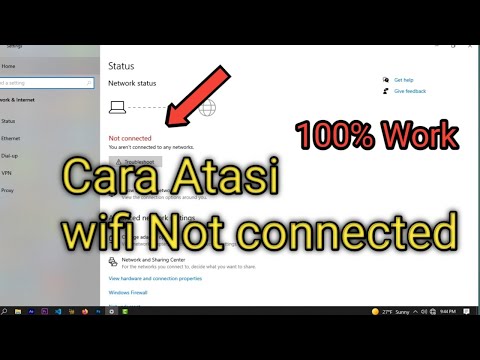
By ijal tutorial Cara atasi WiFi tidak bisa connect di laptop not connected by ijal tutorial

Title: Cara Mengaktifkan WiFi Laptop Asus.Mudah banget guys cara nya
Channel: Sobat Cinta Media
Cara Mengaktifkan WiFi Laptop Asus.Mudah banget guys cara nya by Sobat Cinta Media
Change Wifi Settings
ASUS X44H WiFi Setup: Your Pain-Free Guide to Wireless Bliss
Are you struggling to connect your ASUS X44H laptop to the internet wirelessly? Feeling frustrated by endless troubleshooting and complicated tech jargon? You've come to the right place. This comprehensive guide is designed to walk you through the entire WiFi setup process for your ASUS X44H, ensuring you're online and enjoying seamless connectivity in minutes, regardless of your technical expertise. Forget the stress and confusion; let's get you connected, quickly and effortlessly.
Understanding Your ASUS X44H and Its Wireless Capabilities
Before we dive into the step-by-step instructions, it's helpful to understand a little about your ASUS X44H. This laptop, a reliable workhorse, is equipped with an integrated wireless network adapter. This adapter is the key to accessing WiFi networks. To access wireless Internet you need to have a router to connect to the ASUS X44H. The X44H features an 802.11b/g/n wireless adapter, capable of connecting to both 2.4 GHz networks. This means it can connect to a vast array of WiFi routers, regardless of their age or specification. Knowing this foundational information allows you to better troubleshoot any issues that may arise during setup. It also ensures that you're using the correct information when entering your network credentials.
Preparation is Key: Essential Steps Before WiFi Setup
Before you even think about clicking buttons, a few crucial preparations will streamline the entire setup process. These steps, while seeming elementary to the tech-savvy, are often overlooked and can prevent unnecessary headaches.
Locate Your Router's Information: Your router broadcasts a WiFi signal that your ASUS X44H needs to "see" and connect to. You'll need its essential details. Usually, this information is on a sticker located on the router itself. Look for the network name (SSID) and the security key (often called a password). If you can't find the sticker, or if the information is illegible, consult your router's manual or contact your internet service provider (ISP). Having this information readily available saves time and avoids interruptions.
Ensure Your Router is Powered On and Broadcasting: Make certain that your router is plugged in and switched on. Observe the indicator lights on the router. Look for a light indicating that the wireless feature is active. If the lights are not functioning as expected, troubleshoot your router. It might be a simple power issue. Restarting your router can also resolve preliminary setup glitches.
Charge Your ASUS X44H (or Plug It In): While not strictly necessary for WiFi setup, having a fully charged or plugged-in laptop ensures you won't be interrupted by a low battery notification during the setup process. Interruptions can be frustrating, so it’s best to prepare beforehand.
Have Your ASUS X44H Physically Close to the Router: For the initial setup especially, place your ASUS X44H relatively close to the router. This optimizes the strength of the WiFi signal, which is beneficial, particularly if the router is some distance away. A strong initial signal helps ensure the connection is stable and that the setup is seamless.
Step-by-Step Guide: Connecting to Your WiFi Network
Now, let's get down to the core of the matter: connecting your ASUS X44H to your WiFi. Follow these clear, concise instructions to ensure a successful connection.
Power On Your ASUS X44H: Start by fully booting up your laptop. Allow ample time for the operating system to launch completely, giving all the necessary background processes time to start.
Access the WiFi Settings: There are two primary ways to reach your WiFi settings.
- Via the System Tray: Locate the WiFi or Network icon (it usually looks like a signal bars). This icon is found in the bottom-right corner of your screen. Click on it to open the network selection menu.
- Via Settings App: Click on the "Start" button (Windows logo) in the bottom-left corner. Select "Settings" (it usually looks like a gear). In the Settings window, click on "Network & Internet."
Select Your WiFi Network: Your ASUS X44H will scan for available WiFi networks. The available wireless networks will then appear in a list. Identify your network's name (SSID), which you previously located on your router. Click on your network to select it.
Enter Your Network Security Key (Password): Once you’ve selected your network, a prompt will appear, requesting your network security key (password). Carefully type in the password, paying close attention to uppercase and lowercase letters, numbers, and symbols. Incorrectly entering the password is the most common reason for failed connections.
Connect and Verify: After entering the password, click "Connect" or press Enter. Your laptop will attempt to connect to the network. If the password is correct, your ASUS X44H will connect. The network icon in the system tray will indicate a successful connection, often with a filled-in signal bars or a specific icon to show you are connected.
Test Your Connection: Open a web browser (like Chrome, Firefox, or Edge) and visit a website, such as Google.com. Successfully loading a webpage confirms that your WiFi connection is working correctly. If the webpage fails to load, carefully review the troubleshooting steps below.
Troubleshooting Common WiFi Connection Problems
Even with careful execution, issues can arise. Fear not, as most WiFi problems have straightforward solutions. Here’s how to resolve frequent connection challenges.
Incorrect Password: The most common culprit is an incorrectly entered password. Double-check your entry, making sure you've accurately transcribed the security key from your router's sticker. Remember that passwords are case-sensitive. Retype the password if needed.
Router Signal Issues: Ensure you are within range of your router. If the signal strength is weak, move your laptop closer to the router. Walls, metal objects, and other electronic devices can interfere with the WiFi signal.
Router Problems: Restarting your router is often the first, and often the easiest, fix. Unplug the router from the power outlet, wait 30 seconds, and then plug it back in. Allow several minutes for the router to fully reboot.
Outdated Network Drivers: Your ASUS X44H uses software drivers to communicate with its wireless network adapter. Outdated drivers can lead to connection problems. To update your drivers:
- Open the Settings app (Start > Settings).
- Click on "Update & Security."
- Select "Windows Update."
- Click "Check for updates." Windows will automatically check for and install any available driver updates.
Firewall or Antivirus Interference: Some firewall or antivirus software might block your ASUS X44H from accessing the internet. Temporarily disable your firewall or antivirus software to test if this is the problem. If it resolves the issue, add your ASUS X44H or your wireless network adapter as an exception in your security software's settings.
Network Adapter Issues: In rare cases, the wireless network adapter on your ASUS X44H might have a problem. You can troubleshoot it by:
- Disabling and re-enabling the adapter: In the Settings app, go to "Network & Internet," then "Change adapter options." Right-click on your wireless network adapter and select "Disable," then right-click again and select "Enable."
- Reinstalling the drivers: Go to the Device Manager (search for it in the Start Menu). Expand the "Network adapters" section. Right-click on your wireless network adapter, select "Uninstall device," and then restart your computer. Windows will attempt to reinstall the driver automatically.
Advanced Tips for Optimal WiFi Performance
Once you're connected, there are steps you can take to further improve your WiFi experience.
Keep Your Router Updated: Just like your laptop, your router needs updates too. Router manufacturers regularly release firmware updates to improve performance, security, and compatibility. Check your router's manual or the manufacturer's website for instructions on how to update your firmware.
Optimize Router Placement: Where you place your router significantly affects WiFi coverage. Position your router in a central, open location, away from walls or obstructions. Elevating the router off the floor can also improve signal distribution.
Use the 5 GHz Band (If Available): If your router supports it and your ASUS X44H supports it (and most do), consider connecting to the 5 GHz network instead of the 2.4 GHz network. The 5 GHz band offers faster speeds and less interference, especially in areas with many other WiFi networks.
Secure Your WiFi Network: Always use a strong, unique password for your WiFi network. Change the password regularly and avoid using easily guessable words or phrases.
Final Thoughts: Enjoying Your Wireless Freedom
You've now successfully connected your ASUS X44H to a WiFi network. The process has been designed to be very easy to set up. From now on, you can enjoy the benefits of wireless connectivity. You are now able to browse the internet, check your email, stream videos, and connect to the world, all without the limitations of wires. Should you experience troubleshooting issues, remember to revisit these guides. With a little knowledge and the steps laid out in this guide, you now have the tools to navigate any WiFi challenges that may arise.
