how to set up wifi hotspot from laptop
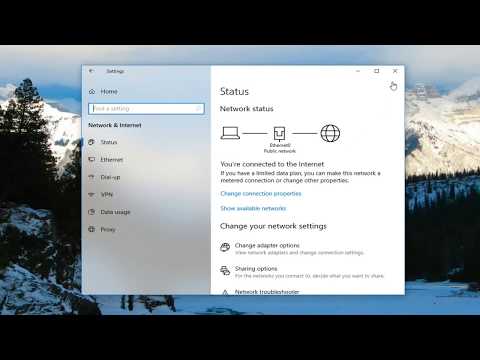
Title: How to Create Wifi Hotspot in Windows 10 Tutorial
Channel: MDTechVideos
How to Create Wifi Hotspot in Windows 10 Tutorial by MDTechVideos
how to set up wifi hotspot on laptop, how to create a wifi hotspot from pc, can i use my laptop as a wifi hotspot
Unlock Your Laptop's Hidden Hotspot: Free WiFi in 60 Seconds!
Unleash the Wireless Wonder: Your Laptop's Secret WiFi Hotspot Revealed!
Ever craved instant internet access, even when far from familiar WiFi signals? It’s a common desire, isn’t it? Well, prepare to be amazed. You can actually transform your laptop into a powerful WiFi hotspot. And, surprisingly, it takes mere moments to set up. Let’s explore this exciting, often overlooked capability.
The Unsung Hero of Connectivity: Laptop Hotspot Basics
Think of your laptop as a versatile Swiss Army knife. It’s more than just a word processor or entertainment hub. It’s a potential gateway to the internet for all your other devices. Essentially, your laptop shares its internet connection. This is achieved wirelessly. It acts as a virtual router, extending its reach. This is incredibly helpful.
Why Bother? The Benefits of a Laptop Hotspot
The reasons to create a laptop hotspot are surprisingly numerous. Consider these practical advantages. Firstly, you can connect multiple devices. Smartphones, tablets, and other laptops can all share the same internet connection. Secondly, it provides crucial connectivity. This is especially useful in areas lacking readily available WiFi. Think of long trips or remote work locations. Thirdly, it’s a lifesaver in emergencies. When your primary internet fails, your laptop can still save the day. Plus, it offers a private and secure network. This is in comparison to public WiFi hotspots. Therefore, it's a wise choice.
Step-by-Step: Creating Your WiFi Hotspot
The following steps are universal. They apply to most modern laptops. They're also incredibly simple. There's absolutely no need to be a tech genius.
Access Your Network Settings: First, locate the network settings. Usually, you can find it through the system tray. Look for the WiFi icon. Right-click it to open the network settings.
Activate the Mobile Hotspot Feature: The exact wording may vary. Look for an option resembling "Mobile Hotspot" or "WiFi Hotspot." Turn this feature on. The location can be in the settings.
Customize Your Hotspot: You’ll typically have options to personalize your hotspot. This includes a network name (SSID) and a password. Choose something easy to remember. You can also customize the network.
Share Your Internet Connection: Be sure to share your laptop's internet connection. Check the settings to ensure it can share. It's often a simple toggle switch.
Connect Your Devices: Now, the magic happens! On your other devices, search for available WiFi networks. Select your laptop’s network name. Enter the password you created. Voila! You’re connected.
Troubleshooting Tips: Common Issues and Solutions
Occasionally, you might encounter minor hiccups. But don't worry! These are often easily resolved.
Hotspot Not Showing Up: Ensure the hotspot is enabled. Also, check your WiFi adapter drivers. Update them if necessary. You will need updated drivers.
Slow Internet Speed: This could be down to your existing connection. The more devices connected, the slower the speed. Therefore, limit the number of connected devices.
Security Concerns: Always use a strong password. Also, consider enabling network encryption. This adds an extra layer of protection.
Connection Drops: Sometimes, the problem might be signal strength. Place your laptop in an open area. Also, ensure other devices are close by. That's generally helpful.
Beyond the Basics: Advanced Hotspot Strategies
Beyond basic setup, there are a few advanced tricks. These tricks could improve your experience.
Bandwidth Management: Some operating systems let you control bandwidth usage. This helps prevents one device from hogging all the speed. It's a great feature.
Extend Your Range: You can use a WiFi extender. This feature enables the hotspot to reach further. The range will be significantly increased.
Data Usage Monitoring: Keep an eye on your data consumption. This prevents exceeding your data plan. It’s a great cost-saving tool.
Conclusion: Embrace the Freedom of WiFi
So, there you have it! You've unlocked a tremendously useful feature. You can now create your own WiFi hotspot. In fact, setting up a hotspot is easier than you think. From now on, you'll always have internet access. It offers flexibility and convenience. You can connect your devices seamlessly, at any time. Enjoy your new-found wireless freedom! Now, go forth and connect!
Laptop with WiFi So Fast, It'll Blow Your Mind!Unlock Your Laptop's Hidden Hotspot: Free WiFi in 60 Seconds!
Hey there, fellow digital nomads, caffeine addicts, and anyone who’s ever stared longingly at a blinking “No Internet Connection” icon! We've all been there, right? Stuck in a coffee shop with weak WiFi, tethered to a mobile data plan that's about to explode, or simply desperate for a connection on the go. But what if I told you there's a secret weapon hiding in plain sight – a hidden hotspot, a digital oasis, right within your laptop? And what if I said you could unlock it in less time than it takes to microwave a burrito? Buckle up, buttercups, because we're about to dive into how to turn your laptop into a free WiFi beacon in a snap!
1. The WiFi Wilderness: Why We Need This Hack
Let's face it, reliable and free WiFi is becoming harder and harder to come by. We’re constantly bombarded by paywalls, spotty signals, and the dreaded "network not found" message. Think about it:
- The Coffee Shop Conundrum: You're at your favorite café, trying to crank out some work, and the WiFi is slower than a snail on a treadmill.
- The Travel Temptation: You're on the road, needing directions, booking a hotel, or simply checking your messages, but the roaming charges are eating into your travel budget faster than you can say "adventure."
- The Emergency Escape: Your home internet goes down, and you’re suddenly cut off from the digital world. What do you do?
This laptop hotspot trick is your digital Swiss Army knife, a solution to these frustrating situations and more. We're not just talking about convenience here; we're talking about control, freedom, and a little bit of tech-savvy rebellion against overpriced internet access.
2. Unveiling the Secret: Your Laptop's Built-In WiFi Powerhouse
Most modern laptops are already equipped with the hardware to create a WiFi hotspot. It's like having a mini-router tucked inside your device, just waiting to be activated. It’s a bit like having a hidden superpower, and we’re here to show you how to unleash it. Think of it as your laptop transforming into a digital lighthouse, broadcasting a signal of connectivity to the world (or at least, to your devices).
3. Windows Warriors: Setting Up Your Hotspot (The Easy Way!)
For those of us rocking a Windows operating system, the process is surprisingly straightforward. Trust me, even if you're not a tech whiz, you can conquer this.
- Step 1: Open Your Settings: Click on the Start menu (that Windows logo in the bottom left corner), and then click on the "Settings" cogwheel (it looks like a gear). Alternatively, you can press the Windows key + I simultaneously.
- Step 2: Navigate to Network & Internet: In the Settings window, click on "Network & Internet."
- Step 3: Mobile Hotspot Power Up: On the left-hand side, click on "Mobile hotspot." This is where the magic happens.
- Step 4: Share Your Internet Connection: Under “Share my Internet connection from”, select the internet connection you’re currently using (e.g., Ethernet, or WiFi).
- Step 5: Name and Password: Click on "Edit" to customize your hotspot's name (SSID) and password. Choose a strong password! This is your digital fortress.
- Step 6: Turn it On: Toggle the "Mobile hotspot" switch to "On." Voila! Your laptop is now broadcasting its own WiFi signal.
4. Mac Mavericks: Your Hotspot Setup Guide
Apple users, fear not! The Mac setup is equally user-friendly.
- Step 1: Open System Preferences: Click on the Apple icon in the top-left corner of your screen and select "System Preferences."
- Step 2: Find the Sharing Panel: Click on "Sharing."
- Step 3: Internet Sharing Magic: In the left-hand sidebar, select "Internet Sharing."
- Step 4: Share Connection From: In the “Share your connection from” drop-down menu, choose the internet connection you're using (like WiFi or Ethernet).
- Step 5: Share Using: Check the box next to "Wi-Fi."
- Step 6: WiFi Options: Click on "Wi-Fi Options…" Here, you can name your hotspot and set a password. Again, make it a strong one!
- Step 7: Start Sharing: Check the box next to "Internet Sharing" to activate your hotspot. Your Mac is now a WiFi provider!
5. Troubleshooting Troubles: When Things Go Wrong
Sometimes, things don't go perfectly according to plan. Don't panic! Here's a quick troubleshooting guide:
- Can't find the Hotspot Settings: Double-check you’re on a recent version of Windows or macOS. Older versions may lack this feature automatically.
- No Internet Connection: Make sure your laptop is actually connected to the internet via Ethernet or WiFi. If your connection is down, your hotspot won't work.
- Network Issues: Check for any firewall restrictions or network settings that might be blocking the hotspot from broadcasting. You might need to adjust some firewall settings.
- Password Problems: Ensure you entered the correct password when connecting devices to your hotspot.
6. Security Savvy: Protecting Your Digital Fortress
Creating a hotspot is awesome, but it's crucial to prioritize security. Think of your hotspot as the front door to your digital life.
- Strong Password is a Must: Never use a simple password like "password" or "123456". Make it a mix of letters, numbers, and symbols.
- Encrypt Your Connection: Both Windows and macOS offer WPA2 or WPA3 security. Enable one of these to encrypt your network traffic.
- Monitor Connected Devices: Pay attention to which devices are connected to your hotspot and disconnect any suspicious ones.
7. Beyond the Basics: Advanced Hotspot Hacks
Once you've mastered the basics, you can explore some advanced options:
- Bandwidth Control: Some software lets you limit the bandwidth used by connected devices, preventing one device from hogging all the speed.
- Time Limits: Set a timer to automatically disable your hotspot after a certain period.
- Third-Party Software: Explore third-party hotspot software for added customization and features.
8. The Speed Test: How Fast Will It Be?
Naturally, the speed of your hotspot depends on the speed of your original internet connection. If you're tethering to a slow connection, your hotspot will be slow. Think of it like pouring water through a funnel: the water can only flow as fast as the funnel allows. Consider testing your internet speed before and after creating the hotspot to get an idea of the performance.
9. Hotspot Etiquette: Play Nicely in the Digital Sandbox
While creating a hotspot is liberating, it's essential to be considerate of your surroundings.
- Avoid Bandwidth Hogging: Be mindful of your data usage. Things like streaming movies or downloading large files can impact everyone connected and drain your own data.
- Respect Public Networks: If you're using a public WiFi connection to create your hotspot, be sure to follow the terms of service of that network.
10. The Data Debate: How Much Will It Cost?
The cost of using a laptop hotspot depends on your underlying internet connection. If you're using a wired connection, it's probably free. If you're tethering to a mobile data plan, understand your data limits and overage charges. Think of it like filling up your gas tank: you need to know how much gas you have and how much fuel each trip will require.
11. Hotspot on the Go: Embracing the Mobile Office
Imagine effortlessly creating a mobile office wherever you go. This laptop hotspot trick unlocks this capability, transforming your device into a versatile hub for work and play. This flexibility can level the playing field for anyone's digital existence.
12. A Look at Laptop Limitations: The Hardware Hurdles
Not all laptops are created equal. To create a hotspot, your laptop needs a working WiFi adapter. It's rare for a laptop to lack this, but it's good to check. If you are using a very old laptop, it may lack the necessary features.
13. Beyond the Basics: Alternative Hotspot Solutions
Even If your laptop has issues, there are alternative hotspot solutions available:
- Mobile Hotspot Devices: These dedicated devices connect to cellular networks and create WiFi hotspots.
- Smartphone Tethering: Use your smartphone's hotspot feature.
14. The Future of Free WiFi: Trends to Watch
The world of WiFi is constantly evolving. Here are some trends to keep an eye on:
- 5G and Beyond: Faster cellular speeds are creating more robust and reliable hotspot connections.
- WiFi 6 & 7: Newer WiFi standards promise even faster speeds and improved performance.
15. Your WiFi Freedom Starts Now!
So, there you have it! We've unveiled the secret to unlocking your laptop's hidden hotspot, turning it into a free WiFi beacon in a matter of
Dell WiFi: The ONE Trick to Instantly Connect!How to turn your Windows 10 laptop into a WiFi hotspot - Wireless hotspot - Free & Easy

By nickscomputerfix How to turn your Windows 10 laptop into a WiFi hotspot - Wireless hotspot - Free & Easy by nickscomputerfix
How to Add Wireless Wifi Network Manually in Windows 10 PC or Laptop
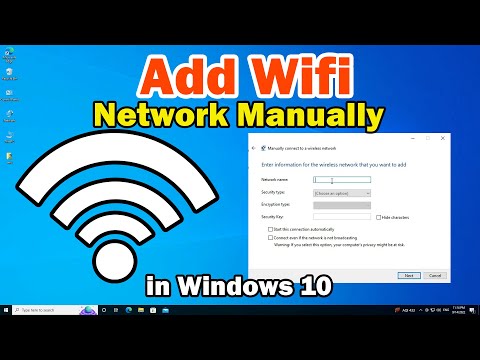
By Discover You How to Add Wireless Wifi Network Manually in Windows 10 PC or Laptop by Discover You
Dont Waste Money on WiFi Repeaters

By GGSheed Dont Waste Money on WiFi Repeaters by GGSheed

Title: How To Share Internet From Laptop To Mobile Via WiFi in Windows 11
Channel: EasyTechGeek
How To Share Internet From Laptop To Mobile Via WiFi in Windows 11 by EasyTechGeek
Wifi On Laptop Phone
Unlock Your Laptop's Hidden Hotspot: Free WiFi in 60 Seconds!
Introduction: Your Gateway to Instant WiFi Freedom
We've all been there: stranded in an airport, coffee shop, or library, desperately seeking a reliable internet connection. The struggle to find an open WiFi network or the burden of paying exorbitant fees can be frustrating. But what if the solution to your connectivity woes was right at your fingertips, hidden within the capabilities of your very own laptop? This comprehensive guide unlocks the secrets of creating a personal WiFi hotspot, transforming your laptop into a powerful wireless access point. We will delve deep into the process, equipping you with the knowledge and tools to broadcast your own free WiFi signal in a matter of minutes, effectively bypassing those costly and inconvenient connection limitations. Prepare to liberate yourself from dependence on public networks and embrace the freedom of instant, portable internet access.
Understanding the Technology: The Magic Behind the Hotspot
Before we delve into the step-by-step instructions, understanding the underlying technology is crucial. Your laptop, regardless of its operating system, possesses an inherent ability to act as a wireless router. This functionality, often dormant, leverages your laptop's built-in WiFi adapter to share an existing internet connection with other devices. The beauty of this setup lies in its simplicity. If your laptop is connected to the internet via Ethernet cable, another WiFi network, or a mobile broadband device, it can effortlessly redistribute that connection wirelessly, creating a personal hotspot for your smartphones, tablets, and other laptops. This process, technically known as "WiFi tethering" or "internet connection sharing," utilizes software-defined access point (SoftAP) technology. SoftAP emulates the function of a physical wireless router, creating a virtual network that other devices can connect to.
Setting the Stage: Essential Preparations for Success
Before you begin, make sure you have a few crucial elements in place:
- An Active Internet Connection: This is the cornerstone of your hotspot. Your laptop needs to be connected to the internet via Ethernet, existing WiFi, or a mobile broadband connection. Without an active internet source, your hotspot will, of course, be rendered useless.
- A Laptop with a Wireless Adapter: Virtually all modern laptops are equipped with a built-in WiFi adapter capable of broadcasting a wireless signal. Check your device settings or consult your laptop's specifications to confirm its WiFi capabilities.
- Administrative Privileges: You'll need administrative rights on your laptop to alter network settings and configure the hotspot. Ensure your user account has these elevated permissions.
- A Secure Password: Protect your hotspot with a strong, unique password to prevent unauthorized access and potential security breaches.
Windows 10 and 11: Activating Your Hidden Hotspot
Windows has streamlined the process of creating a WiFi hotspot. Here’s how to activate it in under a minute:
- Navigate to Settings: Click the Windows Start button and select the cogwheel icon to enter the Settings menu. Alternatively, press the Windows key + I.
- Open Network & Internet: In the Settings menu, click on "Network & Internet."
- Mobile Hotspot: Select "Mobile Hotspot" from the left-hand menu.
- Enable and Configure: Toggle the "Share my internet connection from" switch to "On." Choose the internet connection you want to share from the "Share my internet connection from" dropdown menu. Usually, it will be the connection you’re currently using (Wi-Fi or Ethernet).
- Edit Settings: Click the "Edit" button to customize your hotspot's name and password. Enter a descriptive network name (SSID) and a strong, secure password. Please make sure you remember this for you to be able to use it later. After all this, tap "Save" after you finish.
- Connect and Enjoy: Your hotspot is now active! Search for the network name (SSID) on your other devices, enter the password, and connect. You can start enjoying your free WiFi.
macOS: Sharing Your Internet Connection with Ease
macOS offers an equally straightforward method for creating a personal hotspot:
- Open System Preferences: Click the Apple menu (the Apple logo in the top-left corner of your screen) and select "System Preferences."
- Select Sharing: In the System Preferences window, click on "Sharing."
- Internet Sharing: In the left sidebar, check the box next to "Internet Sharing."
- Share Connection From: From the "Share your connection from" dropdown menu, select the internet connection your Mac is currently using (e.g., Wi-Fi or Ethernet).
- To Computers Using: Check the box next to "Wi-Fi."
- WiFi Options: Click the "WiFi Options…" button. In the window that appears, enter a network name (SSID) and set a password. Choose a security type (WPA2 Personal is recommended). This is very important, so make sure the next time you want to use it, you remember this.
- Start Sharing: Click "OK" to save your WiFi options. Then, enable the Internet Sharing service by checking the "Internet Sharing" box. A popup will appear asking if you want to start the service now. Click "Start" to confirm.
- Connect: Your hotspot is now active. Search for the network name (SSID) on your other devices, enter the password, and connect.
Troubleshooting Common Hotspot Issues
While the process is generally simple, you might encounter some issues. Here are some common problems and their solutions:
- Hotspot Not Showing Up:
- Check WiFi Adapter: Ensure your laptop's WiFi adapter is enabled.
- Driver Updates: Update or reinstall your WiFi adapter drivers.
- Restart: Restart your laptop and the devices you're trying to connect.
- Firewall: Temporarily disable your firewall to see if it's blocking the connection.
- Network Name: Make sure the network name (SSID) is not conflicting with another network in the area.
- Slow Internet Speed:
- Connection Quality: The speed of your hotspot depends on the speed of your source internet connection.
- Number of Devices: Too many devices connected simultaneously will reduce your hotspot's speed.
- Interference: Physical obstructions, such as walls, can weaken the WiFi signal.
- Distance: Move closer to your laptop to improve the connection strength.
- Connection Dropping Frequently:
- Driver Issues: Update or reinstall your WiFi adapter drivers.
- Power Settings: Ensure your laptop's power settings aren't disabling the WiFi adapter to save power.
- Interference: Move your laptop away from interference sources, such as microwaves or other electronic devices.
- Security Concerns:
- Strong Password: Always use a long, complex password to protect your hotspot.
- WPA2/WPA3 Encryption: Select the most secure encryption type available.
- Monitor Connections: Regularly review the connected devices to your hotspot.
Boosting Your Hotspot's Performance
While the basic setup is straightforward, there are a few things you can do to optimize your hotspot's performance:
- Choose the Right Channel: WiFi routers operate on different channels. Some channels are less congested than others. Use a WiFi analyzer app on your smartphone to identify the least crowded channel in your area and configure your laptop's hotspot to use that channel (this option is usually found in advanced settings).
- Maximize Signal Strength: Position your laptop in a central location to ensure optimal signal coverage. Keep it away from walls or other obstructions.
- Limit Connected Devices: The more devices connected to your hotspot, the slower the internet speed for each one.
- Update Your Operating System: Ensure your operating system is up to date to benefit from the latest security patches and performance improvements. Updating your operating system can sometimes automatically improve your hotspot.
Free WiFi Everywhere: The Ultimate Hack for Connectivity
Creating a personal WiFi hotspot from your laptop unlocks a new level of connectivity. It’s an inexpensive method for accessing the internet. You are no longer tethered to public WiFi networks. Whether you're traveling, working remotely, or simply need to connect multiple devices, your laptop's hidden hotspot empowers you to stay connected, anytime, anywhere. By following these simple steps, you can turn your laptop into a reliable source of free WiFi, eliminating the need to pay for expensive access or struggle with unreliable public networks. The knowledge you've gained today equips you with the skills to become your own internet provider, ensuring you're always connected and empowered. This is the ultimate hack for WiFi freedom.
