sony vaio laptop wifi drivers windows 10

Title: Cara Mengatasi Adapter Wifi Yang Hilang di Windows 10 Pc atau laptop
Channel: WINTECH id
Cara Mengatasi Adapter Wifi Yang Hilang di Windows 10 Pc atau laptop by WINTECH id
sony vaio laptop wifi drivers windows 10, sony vaio e series wifi drivers for windows 10 64 bit, sony vaio laptop wifi turned off, how to turn on wifi in sony vaio laptop windows 10
**Download Sony Vaio WiFi Drivers Windows 10 NOW! (Fix Connection Issues!)**
Sony Vaio WiFi Woes? Reclaim Your Windows 10 Connection!
Do you ever feel stranded in the digital desert? You are desperately trying to connect. Then, your Sony Vaio refuses to cooperate. It is a frustrating experience. But don't despair! This is a common problem. Many Vaio users have faced similar WiFi connection issues with Windows 10. Fortunately, the solution is often simpler than you think. We’ll walk you through it. We are going to get your wireless connection back on track.
The Elusive Driver: Your First Stop
The heart of any WiFi connection lies in its driver. Think of the driver as the translator. It is the vital link between your computer and your WiFi adapter. Windows 10, while generally reliable, sometimes struggles with legacy drivers. It can be a headache. Therefore, updating or reinstalling your WiFi driver is the initial step. It is crucial to ensure a smooth connection. This is where we begin our troubleshooting journey. Luckily, it is typically a straightforward process.
Where to Find Your Vaio's WiFi Magic
Finding the right driver is paramount. So, where do you start your search? Sony’s official website is your best bet. Visit the Sony support page. There, you can usually locate the specific drivers for your Vaio model. Just input your model number. You should find the relevant drivers quickly. Another alternative is to use Windows Device Manager.
Navigating the Device Manager Labyrinth
The Windows Device Manager is your friend. It is a powerful tool. It allows you to manage hardware. Access it by typing “Device Manager” into the Windows search bar. Open the Device Manager. Then, expand the "Network adapters" section. Look for your WiFi adapter. It will bear a name related to "Wireless" or "WiFi". You should see it listed there. Right-click on your WiFi adapter. Select "Update driver." Choose "Search automatically for drivers.” Windows will then attempt to find an updated driver. If successful, you are a step closer to victory.
Manual Driver Installation: A Deeper Dive
Sometimes, automatic updates fail. That is fine. Manual driver installation is an option. If you downloaded a driver from Sony's website, its installation is simple. Usually, you can just double-click the downloaded file. Follow the on-screen instructions. They should guide you through the process. Make sure you have administrative privileges. Afterward, restart your computer. This allows the new driver to take effect.
Troubleshooting Beyond the Driver
Installing or updating the driver solves many problems. Yet, other issues may arise. Let’s consider other potential culprits. First, verify your WiFi adapter is enabled. In Device Manager, right-click the adapter. Ensure it is not disabled. Also, check the physical WiFi switch. This switch is often located on your Vaio. Ensure it is in the "On" position.
Network Adapter Settings: A Quick Check
Sometimes, your network adapter settings need adjustment. Access your network connection settings. You can find this in the Control Panel or Settings app. Click on "Change adapter settings." Right-click on your WiFi connection. Select "Properties." Then, check the "Internet Protocol Version 4 (TCP/IPv4)" settings. Ensure they are set to "Obtain an IP address automatically" and "Obtain DNS server address automatically." If not, change them. Apply the changes.
The Router: Is It Playing Nice?
Your Vaio is one piece of the puzzle. Your router is another component. Make sure your router is working correctly. Try restarting your router. Often, this resolves connection problems. Ensure that your router broadcasts the correct network name (SSID). Also, make sure your password is correct.
Driver Rollback: When the New Goes Wrong
Sometimes a new driver creates problems. Here’s how to fix it. You want to revert to a previous driver. In Device Manager, right-click on your WiFi adapter. Choose "Properties." Then, select the "Driver" tab. If the "Roll Back Driver" option is available, use it. It will restore the previous driver. Reboot your system.
A Final Thought: Patience is a Virtue
Resolving WiFi issues takes time. There is no immediate fix. Don't give up! Work methodically. Try each solution. Eventually, your persistent efforts will pay off. You will be back online in no time. Remember to back up important data. This prevents data loss. Hopefully, these tips will get you connected again. Enjoy your restored WiFi connection! Let us know if you need more assistance!
ASUS WiFi Nightmare? FIX Your Connection NOW!Download Sony Vaio WiFi Drivers Windows 10 NOW! (Fix Connection Issues!)
Hey there, fellow tech travelers! Ever felt like your Sony Vaio laptop is playing hide-and-seek with your Wi-Fi? You’re not alone! We’ve all been there, staring at that little "no internet" icon and feeling a surge of frustration. But fear not, because today, we're diving headfirst into the world of Sony Vaio Wi-Fi drivers for Windows 10 – and guess what? We're going to get you back online, stat! Think of this article as your personalized roadmap: easy to follow, packed with helpful tips, and designed to get your Vaio connected again. Let’s get started, shall we?
1. The Vaio WiFi Woes: A Shared Experience
Let's be honest, technology doesn't always play nice, does it? We've all experienced the sudden disconnect, the buffering wheel of doom, and the infuriating inability to access the internet. When it comes to Sony Vaio laptops, particularly those running Windows 10, Wi-Fi driver issues are, sadly, a common hurdle. It's like trying to find a specific lost sock in a laundry basket – it can be a real headache. This article aims to smooth out those wrinkles, providing a clear pathway to fix those connection issues and get you back to browsing, streaming, and working without the constant interruptions.
2. Understanding the Root Cause: Why Are Your Drivers Acting Up?
So, what's the deal? Why do these Wi-Fi drivers sometimes give us the runaround? Well, there are a few culprits at play.
- Driver Incompatibility: Windows 10, as amazing as it is, can sometimes clash with older hardware drivers. Your Vaio might be running drivers that weren’t designed for Windows 10, leading to connectivity problems. It’s like trying to fit square pegs into round holes.
- Driver Corruption: Over time, drivers can become corrupted. This could be due to software conflicts, system updates, or even just a random glitch. Think of it as a tiny gremlin messing with the electrical wires.
- Outdated Drivers: Just like a car needs regular maintenance, your drivers need to be updated. Outdated drivers can lack the necessary fixes and optimizations, making them vulnerable to connection errors.
3. Identifying the Symptoms: Is it Really a Driver Problem?
Before we start troubleshooting, let's make sure the problem is actually driver-related. Here are some common symptoms:
- No Wi-Fi Networks Visible: Your Vaio might not be detecting any Wi-Fi networks at all, even though you know they're available. It’s like your laptop has suddenly gone blind to all the available signals!
- Limited Connectivity: You might connect to a network, but the internet speed is painfully slow, or the connection keeps dropping. Picture a sluggish river flowing at a snail's pace.
- Constant Disconnects: Your Vaio connects, then disconnects, repeatedly. This is one of the most frustrating issues – the digital equivalent of a revolving door.
- Error Messages: You might see error messages related to the network adapter or driver errors. These messages can sometimes be cryptic, but they're a vital clue.
4. The Step-by-Step Guide: Downloading and Installing the Right Drivers
Alright, let's get to the good stuff – the fix! Here's how to download and install the correct Wi-Fi drivers for your Sony Vaio running Windows 10. I promise, it's easier than you think.
- Step 1: Identify Your Vaio Model: This is super important. You'll need your specific Vaio model number. You can usually find this on a sticker on the bottom of your laptop. Knowing the model ensures that we are downloading the correct drivers.
- Step 2: Visit the Official Sony Support Website: Head over to the official Sony support website. Make sure you're on a legitimate site to avoid any potential malware. It’s like taking your car to a trusted mechanic.
- Step 3: Navigate to the Drivers and Downloads Section: Look for the "Support" or "Drivers & Downloads" section. The exact location might vary depending on the website.
- Step 4: Enter Your Vaio Model Number: Enter your model number in the search bar, and hit enter. This tells the site exactly what kind of Vaio we are troubleshooting.
- Step 5: Locate the Wireless LAN Driver: Once the search results load, look for the Wi-Fi or Wireless LAN driver. It might also be labeled as "Network Adapter."
- Step 6: Download the Driver: Click on the download link. Make sure to save it to a location you can easily find, such as your Desktop.
- Step 7: Install the Driver: Double-click on the downloaded file to start the installation process. Follow the on-screen instructions. This is often as simple as clicking through a series of "Next" buttons.
- Step 8: Restart Your Vaio: Once the installation is complete, restart your laptop. This helps the new driver fully integrate with the system.
5. Driver Updates via Device Manager: Your Backup Plan
Sometimes, downloading from the Sony website isn’t the quickest solution, or perhaps you're not sure where to start. Here's how to update your drivers through the Device Manager:
- Step 1: Open Device Manager: Right-click on the Start button (or press Windows key + X) and select "Device Manager."
- Step 2: Expand Network Adapters: Scroll down and expand the "Network adapters" category. This is where all your network-related hardware lives.
- Step 3: Right-Click on Your Wireless Adapter: Find your Wi-Fi adapter (it will likely have "Wireless" or "Wi-Fi" in the name) and right-click on it. It's the same process as renewing your driver.
- Step 4: Select "Update Driver": Click on "Update driver."
- Step 5: Choose "Search Automatically for Drivers": Windows will then search online for updated drivers. This is like asking an expert to find the solution.
- Step 6: Follow the Prompts: If an update is found, follow the on-screen instructions to install it.
- Step 7: Restart Your Vaio (Again!): Restart your computer for the changes to take effect.
6. Troubleshooting Common Issues: What If It Still Doesn't Work?
Even with the correct drivers installed, sometimes things can still go wrong. Here are some additional troubleshooting steps:
- Check Your Router: Make sure your router is working correctly and that other devices can connect to the internet. Sometimes, the issue isn’t with your Vaio but with your home network.
- Restart Your Router: Give your router a quick reboot. Just unplug it from the power outlet, wait a few seconds, and plug it back in. This is like giving your home network a fresh start.
- Run the Windows Network Troubleshooter: Windows has a built-in network troubleshooter that can often identify and fix common problems. Go to Settings > Network & Internet > Troubleshoot.
- Check Your Antivirus/Firewall: Some antivirus programs or firewalls can interfere with your internet connection. Temporarily disable your antivirus or firewall to see if that resolves the issue.
- Try a System Restore: If the problem started recently, you can try restoring your system to a previous point in time when everything was working correctly.
7. Advanced Techniques: When Things Get Tricky
For those who are feeling a bit more tech-savvy, here are a few more advanced techniques you can try:
- Manually Uninstall and Reinstall the Driver: Sometimes, a clean reinstall is necessary. In Device Manager, right-click on your Wi-Fi adapter, select "Uninstall device," and then restart your Vaio. Windows will (hopefully) automatically reinstall the correct driver.
- Roll Back the Driver: If a recent driver update caused the problem, you can roll back to a previous version in Device Manager. Right-click on your Wi-Fi adapter, select "Properties," go to the "Driver" tab, and click "Roll Back Driver."
- Check for Hardware Failure: In rare cases, there might be a hardware problem with your Wi-Fi adapter. If all else fails, consider having your Vaio checked by a professional.
8. The Value of Regular Driver Updates: Keeping Your Vaio Fresh
Think of regular driver updates like getting an oil change for your car. They're essential for smooth performance and the longevity of your laptop. By keeping your drivers up-to-date, you can prevent future connection issues and improve your overall experience. Make it a habit to periodically check for driver updates, and your Vaio will thank you!
9. Battery Life and Driver Optimization: What’s The Connection?
Did you know that your Wi-Fi drivers can also impact your battery life? Outdated or poorly optimized drivers can drain your battery faster. By keeping your drivers updated, you're also helping to ensure that your Vaio runs more efficiently, thus extending its battery life – a win-win!
10. Security Considerations: Protecting Your Connection
Updating your Wi-Fi drivers isn't just about speed and connectivity;
My Windows 10 WiFi Nightmare: Solved! (Finally!)Tidak Bisa Terhubung dengan Wifi, Wireless Receiver Laptop Sony Vaio PCG-61711W Bermasalah FaUS 12

By Bagus Ramadhan Tidak Bisa Terhubung dengan Wifi, Wireless Receiver Laptop Sony Vaio PCG-61711W Bermasalah FaUS 12 by Bagus Ramadhan
Sony Vaio Wireless Wifi Driver - Widows 7810

By scriptingDz Sony Vaio Wireless Wifi Driver - Widows 7810 by scriptingDz
Cara Download & Install Driver WIFI & ETHERNET Manual untuk Windows 781011

By inprez id Cara Download & Install Driver WIFI & ETHERNET Manual untuk Windows 781011 by inprez id
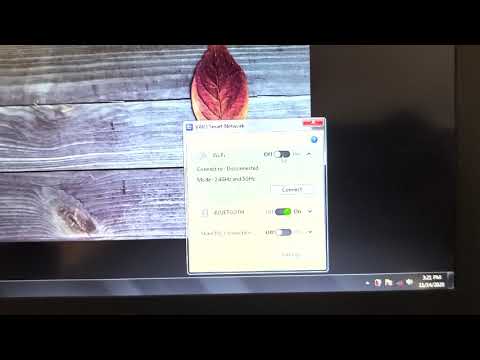
Title: SONY VAIO WiFi Tidak Berfungsi Tidak Terhubung Tidak Ada Koneksi Tersedia Perbaiki Perbaikan Jaringan VAIO Smart.
Channel: It's Binh Been Repaired & Everything Reviewed
SONY VAIO WiFi Tidak Berfungsi Tidak Terhubung Tidak Ada Koneksi Tersedia Perbaiki Perbaikan Jaringan VAIO Smart. by It's Binh Been Repaired & Everything Reviewed
Working With Laptop
Download Sony Vaio WiFi Drivers Windows 10 NOW! (Fix Connection Issues!)
Are you struggling to connect your beloved Sony Vaio laptop to the internet after upgrading to Windows 10? The frustration of a non-functional Wi-Fi adapter is a common hurdle, but thankfully, a solution is readily available. This comprehensive guide provides you with the precise information and straightforward steps necessary to download and install the correct Sony Vaio WiFi drivers for your Windows 10 operating system. We’ll delve into the intricacies of driver compatibility, offer troubleshooting tips for persistent connection issues, and ultimately, restore your Vaio's seamless wireless connectivity. Get ready to reclaim your online experience.
Identifying Your Specific Sony Vaio Model
The key to successful driver installation lies in identifying your precise Sony Vaio model. This is paramount because Sony, throughout the Vaio's lifespan, produced a diverse range of models, each potentially requiring distinct drivers. Locating this crucial piece of information is relatively straightforward. Examine the physical device itself. Typically, the model number is printed on a sticker located on the underside of the laptop. It may also be found near the battery compartment or within the user manual that accompanied your Vaio. If you no longer have the physical device readily available, consider checking the original packaging or any associated receipts. Another approach involves accessing the system information within Windows. To do this, search for “System Information” in the Windows search bar. Upon opening the application, you'll find your Vaio's model number listed under "System Model." Meticulous attention to detail during this initial phase lays the foundation for a smooth and successful driver installation experience.
Downloading the Correct Drivers from Official Sources
Once you have determined your Sony Vaio model, the next step is to download the appropriate WiFi drivers. It's critical to obtain these drivers from reputable sources to ensure their integrity and compatibility. The most reliable source is, undeniably, the official Sony support website. Navigate to the Sony support website specific to your region. Within the support section, locate the "Drivers and Downloads" or "Support" sections. You'll typically be prompted to enter your Vaio's model number or select your product category. Carefully input the information requested, and the website will provide a list of available drivers, including those for the WiFi adapter. Be absolutely sure that the drivers you select are specifically designed for Windows 10 and your Vaio model. Avoid downloading drivers from any third-party websites, as these may contain malware or be outdated, causing system instability. Download the WiFi driver package and save the file to a convenient location, such as your desktop, for easy access during the installation process.
Step-by-Step Driver Installation Guide
With the correct drivers downloaded, you're now ready to initiate the installation process. Double-click the downloaded driver file to begin. You’ll typically encounter an installer wizard that will guide you through the process step-by-step. Follow the on-screen instructions carefully. This usually involves accepting the license agreement, selecting the installation location (the default is generally fine) and confirming the installation. While installing, the process may involve temporary disconnections of your network. Allow the installation to complete without interruption. The installer may prompt you to restart your Vaio to fully implement the new driver. Always follow these prompts. After the restart, the installed driver should allow your WiFi adapter to connect to wireless networks.
Troubleshooting Common Connection Issues
Even with the correct driver installed, connection problems can sometimes linger. Here are some troubleshooting steps to address potential roadblocks:
Check the Physical Wi-Fi Switch: Many Sony Vaio laptops have a physical switch, often located on the side or front of the device, that enables or disables the Wi-Fi adapter. Ensure that this switch is in the "on" position. It's an embarrassingly common mistake to overlook, but easily rectified.
Enable Wi-Fi from Windows Settings: Navigate to the Windows Settings app, typically accessible through the Start menu. Go to "Network & Internet," and then "Wi-Fi." Make sure that the Wi-Fi toggle is set to "On." If it’s grayed out, it may indicate a hardware issue or driver problem.
Run the Windows Network Troubleshooter: Windows is built to identify and attempt to resolve common network issues. From the Windows settings or Control Panel ,find "Troubleshoot," and select "Network Adapter." Running this tool can often automatically correct connectivity problems related to the adapter.
Check Network Connections and Credentials: Verify that you are selecting the correct Wi-Fi network and that you are entering the correct password. Double-check the casing and spelling, paying particular attention to special characters. This seemingly minor issue can cause significant frustration.
Update Your Router's Firmware: An outdated router firmware can sometimes cause connectivity problems. Access your router’s settings, usually by entering the router's IP address (often 192.168.1.1 or 192.168.0.1) into a web browser, and check for firmware updates. Updating your router can drastically improve Wi-Fi performance and compatibility with your Vaio.
Disable Third-Party Security Software: Some security software can sometimes interfere with network connections. Temporarily disable any third-party firewalls or antivirus software, and then attempt to connect to your WiFi network. If this resolves the issue, you may need to adjust the settings within the security software to allow your network connection to function properly.
Roll Back or Reinstall the Driver: If you're still experiencing connection problems after trying the above steps, it may be worth rolling back the driver to a previous version if one is available within the Device Manager, or completely uninstalling the driver and reinstalling the new driver. Open Device Manager. Locate your Wi-Fi adapter in the "Network adapters" section. Right-click on the adapter and select "Properties." In the "Driver" tab, you may see an option to "Roll Back Driver." If available, use this function to revert to the prior driver version. If rolling back proves unsuccessful, uninstall the driver and repeat the installation steps to ensure the driver is correctly installed.
Advanced Troubleshooting: Device Manager and Network Adapter Settings
For persistent connection issues, delve into the Device Manager for more advanced settings. Search for "Device Manager" within the Windows search bar and open the application. Expand the "Network adapters" section to locate your Wi-Fi adapter (it may be described specifically by its model, e.g., "Intel Wireless-AC 9260"). Right-click on the adapter and select "Properties." Within the "Advanced" tab, you can typically tweak several settings that might influence connectivity. Experiment with settings such as "802.11n/ac/ax Mode," "Wireless Mode," or "Roaming Aggressiveness". These settings can impact how the adapter negotiates connections with your router. Be aware of your router's capabilities when adjusting these parameters. Furthermore, always consult the specifications of each setting before making any changes. Remember to restart your Vaio after making any changes within the Device Manager for the changes to take effect.
Addressing Hardware-Related Problems
While drive issues are the most frequent cause of WiFi problems, hardware failures may also occur. If you have exhausted the troubleshooting steps, consider the possibility of a malfunctioning WiFi adapter. If this persists, and no amount of driver adjustments or software fixes solve the issue, it would be advisable to contact Sony support or a qualified computer technician. A technician can thoroughly examine the internal components of your Vaio and diagnose the situation. Often, replacing the WiFi adapter is a relatively straightforward repair.
Ensuring Consistent Wireless Performance
Once your connection is restored, consider steps to enhance the performance and stability of your wireless experience. Position your Vaio in a location with minimal obstructions to the WiFi signal. This means avoiding placement near microwave ovens, cordless phones, or thick walls that can interfere with the signal. Regularly update your router's firmware, as mentioned previously. Reduce the number of connected devices to the same network to prevent bandwidth congestion. Occasionally restart both your Vaio and the router to maintain a fresh connection. Implementing these practices will generally improve the quality of your WiFi connectivity.
Staying Updated: The Importance of Driver Maintenance
Maintaining current drivers is important. Regularly check the Sony website for driver updates, even after establishing a working connection. Updated drivers often include bug fixes, performance improvements, and compatibility enhancements, all of which contribute to a smoother and more reliable WiFi experience. Enable automatic driver updates in Windows settings, though be vigilant about any potential issues with automatic updates. Always back up your system before implementing significant driver updates.
