enable wifi funcionality in windows xp laptop
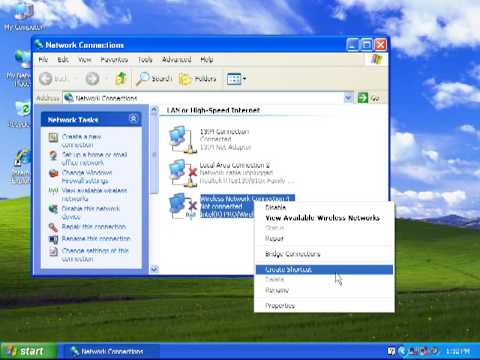
Title: How to connect Windows XP to your wireless network
Channel: NetComm
How to connect Windows XP to your wireless network by NetComm
Unlock Your XP Laptop's WiFi: The Secret Trick No One's Telling You!
Unleashing Your XP Laptop's WiFi: The Forgotten Path to Wireless Freedom!
Remember those trusty, time-tested Windows XP laptops? Still got one tucked away? You might think their Wi-Fi capabilities are relics of the past. You might be wrong. Because, if you're anything like me, you hate being tethered to an Ethernet cable. Fortunately, a secret trick can breathe new life into your vintage wireless connection. So, let's dive in.
The Ghosts of Wireless Past: Why XP is Still Relevant
Before we explore the solution, let's address the elephant in the room. Why bother with an XP laptop in the age of blazing-fast Wi-Fi 6? Well, simply put, nostalgia. Maybe you have a specific software program it runs. Perhaps you just like the feel of it. For many of us, these older machines still hold a special place. They hold memories. They worked. They can still work. Therefore, understanding how to get them online is important.
The Hidden Culprit: Security Protocol Hurdles
Your XP laptop's Wi-Fi card is likely perfectly functional. The problem? Encryption. Modern routers prioritize security. They utilize protocols like WPA2 or WPA3. XP, on the other hand, often struggles with these newer standards. Consequently, it can be incredibly frustrating. The laptop sees available networks. Then, it fails to connect. After all, it's a frustrating experience. This is the crux of the issue.
Unveiling the Secret: The Encryption Configuration
Now, let’s get to the good stuff. There’s a workaround. It centers around your router’s configuration. It’s really not rocket science. Firstly, access your router's settings. You can typically do this by typing your router's IP address into your web browser. This address is usually found on a sticker on the router itself. Additionally, you can consult your router's manual. Then, look for the section dedicated to wireless security.
Decoding the Encryption: Finding the Sweet Spot
The goal is to find a compatible security protocol for your XP laptop. Although it's not recommended for long-term security reasons, you should consider using WEP or WPA with TKIP. However, if you're comfortable, you can also consider disabling the security entirely for testing purposes. Important Note: Disabling security is highly discouraged because it leaves your network vulnerable. However, you can do it to troubleshoot. Try to find a middle ground. Try changing the security type and password. Moreover, use a short, unique password. After adjusting the settings, save the changes and restart your router.
Conquering the Connection: Tweaking Your XP Settings
Next, navigate to your XP laptop. Click on the Wi-Fi icon in the system tray. Select your wireless network from the available list. If all went well, you should be prompted for a password. Enter the password you set up on your router. If you're still facing issues, you may need to manually configure the wireless settings. You can do this by going into the Network Connections control panel.
The Manual Configuration: A Step-by-Step Guide
- Right-click on your wireless network adapter.
- Select "Properties."
- In the "Wireless Networks" tab, click on "View Wireless Networks."
- Select your network.
- Click "Properties."
- In the "Authentication" section, select the same security type that you used on your router (WEP, WPA with TKIP, etc.).
- Enter the network key (password).
- Confirm and save all changes.
Troubleshooting Troubles: When Things Go Awry
Even after these steps, you might encounter problems. Don’t panic! Here’s what to do:
- Double-check the password: This is the most common culprit. Ensure you’ve entered the correct case-sensitive password.
- Router compatibility: Some older laptops may not fully support all WPA or WPA2 settings. If possible, try downgrading again to WEP or WPA with TKIP.
- Driver updates: While unlikely, outdated drivers could be an issue. Though, finding XP-compatible drivers might be difficult. However, check your laptop manufacturer's website.
- Distance and Interference: Make sure you are within the range of your router. Also, minimize interference from other electronic devices.
- Restart Everything: Reboot your laptop and router. Frequently, a simple restart resolves the situation.
The Takeaway: Reliving the Wireless Dream
So, there you have it. You now possess a secret weapon. You can unlock your XP laptop’s Wi-Fi. Therefore, you can reclaim the wireless freedom it once enjoyed. Following these steps, you’ve uncovered one of the little tricks. It can often bring old technology back to life. Happy surfing, fellow tech enthusiasts! After all, the joy of a functional machine shouldn’t be underestimated. The journey itself is worth it. Get online and enjoy!
Windows 10 WiFi Nightmare? FIX It NOW! (Easy Steps)Unlock Your XP Laptop's WiFi: The Secret Trick No One's Telling You!
Hey everyone! Ever feel like you’re wrestling a stubborn octopus when you try to connect your trusty old Windows XP laptop to the internet? You're not alone! I remember the frustration. Remember those dial-up days? Times have changed, and we need to be connected. Trying to get that legacy machine online can feel like a relic of the past. But fear not, fellow tech enthusiasts! We’re about to crack the code and get your XP laptop surfing the web again. We're talking the secret sauce, the hidden gem, the thing no one really tells you (until now!). Let's dive in!
1. The Nostalgia Factor: Why We Still Love Our XP Laptops
First things first: why are we even bothering with these vintage laptops? Well, for a lot of us, it's pure nostalgia. They were the workhorses! The ones that brought us the internet in the first place. They hold a special place in our hearts (and sometimes, our garages). Plus, they're perfect for certain tasks, like running older software or simply having a dedicated machine for those old-school games! Remember Solitaire?
2. The WiFi Woes: The Usual Suspects
Okay, let's get real. Connecting to WiFi on an XP machine can feel like navigating a minefield. Common problems? Outdated drivers, security protocols that are ancient history, and the sheer fact that your laptop is probably begging for an update. But before you throw your hands up in despair, let’s tackle the common culprits. We'll walk through it together.
3. The Secret Sauce: Unleashing the Power of WPA2-AES
Here’s the golden nugget, the secret trick: WPA2-AES is your friend. Seriously. Most modern routers are set up with WPA2 security, but your XP laptop might be struggling to play nice with that standard, especially if you have older hardware. The key is to configure your router to accept WPA2-AES (Advanced Encryption Standard). This is generally more compatible than TKIP encryption, the older standard.
4. How to Adjust Your Router Settings: A Step-by-Step Guide
Okay, this is where it gets technical but let’s break it down simply.
- Access Your Router's Admin Panel: This usually involves typing an IP address (like 192.168.1.1 or 192.168.0.1) into your web browser. You’ll need your router's username and password, which are usually found on a sticker on the router itself.
- Find the Wireless Security Settings: Look for a section labeled “Wireless Security,” “Security,” or something similar.
- Select WPA2-AES: In the security settings, choose WPA2 as the security mode and, importantly, select AES (or AES/CCMP) as the encryption method. Avoid TKIP if possible.
- Save the Settings: Click "Save" or "Apply." Your router might reboot, so be patient!
5. On Your XP Laptop: Driver Updates and Network Adaptor Settings
Now, let's make sure your XP laptop is ready to join the party.
- Driver Check: Open Device Manager (search for it in the Start menu). Find your Network Adaptors. Are there any yellow exclamation marks? Those indicate driver issues. Find the drivers for your network card. If you can't find them, try searching online using the model number of your network adapter.
- Wireless Network Connection: Right-click on your Wireless Network Connection icon. It should look like a signal bar in your system tray. Select “Properties”.
- Wireless Network Properties: Under the "Wireless Networks" tab, you might need to select your wireless network and click "Configure." Ensure WPA2 is selected, and the encryption type matches your router’s settings.
6. The Encryption Enigma: Why TKIP Can Be Troublesome
While TKIP (Temporal Key Integrity Protocol) was an early security protocol, it's considered vulnerable these days. Think of it like a rickety old bridge – it might get you across, but it's not exactly reliable. Using AES is like traveling on a sturdy, modern highway: much more secure and faster.
7. Troubleshooting Tips: When Things Go Awry
Sometimes, even after following these steps, things get a little… wonky.
- Restart EVERYTHING: Your router, your laptop, maybe even your phone! This can often solve temporary glitches.
- Double-Check Your Password: It’s easy to mistype. Seriously, it happens to the best of us!
- Look for Interference: Other devices, particularly cordless phones and microwaves, can disrupt your WiFi signal.
- Consider a USB WiFi Adapter: If all else fails, a newer USB WiFi adapter can bypass any hardware incompatibility and give your XP laptop a modern wireless connection.
8. Security Considerations: Playing It Safe Online
Let's be real: XP is considered obsolete, and is no longer receiving security updates. This means your laptop is more vulnerable to malware and viruses.
- Use a Robust Antivirus: Make sure you have a good antivirus program installed and updated.
- Browse Carefully: Be cautious about the websites you visit and the attachments you open.
- Consider a VPN: A VPN (Virtual Private Network) encrypts your internet traffic, adding an extra layer of security.
- Use a Guest Network: If possible, consider connecting your XP laptop to a guest network. This isolates it from the main network.
9. Keeping Your XP Laptop Updated (As Much As Possible!)
While official updates are a thing of the past, there are still a few ways to keep your XP laptop as safe as possible.
- Third-Party Security Software: Keep your antivirus software consistently updated.
- Manual Updates: If possible, search for and install any available driver updates, especially for your network adapter.
10. The Power of Community: Asking for Help
Don’t be afraid to ask for help! The internet is full of helpful forums and communities dedicated to Windows XP. Search online for your issue, and you'll likely find someone who has faced the same problem. Sharing your problem is like finding your lost car keys, and the internet is filled with helping hands.
11. Comparing XP to Modern Operating Systems: A Quick Recap
We're not going to pretend XP is a modern OS. The performance, security, and features of Windows 10 or 11 are light-years ahead. But, for specific tasks, XP can still be fun and serve its purpose. Think of it like a classic car – charming, maybe a bit temperamental, but still enjoyable to drive.
12. Why Embrace the Challenge? The Joy of Retro Computing
There’s something satisfying about keeping these older machines running. It’s a testament to their durability and our ability to adapt and keep them functional. Think of it this way: you’re not just connecting to WiFi, you’re keeping a piece of tech history alive.
13. Beyond WiFi: Other Uses for Your XP Laptop
Once you're online, there are tons of things you can do with your XP laptop.
- Retro Gaming: Perfect for playing those classic games.
- Legacy Software: It's great for running older software that’s not compatible with newer operating systems.
- Dedicated Task Machine: Use it for a specific, controlled purpose like word processing or photo editing.
14. The Future of XP: Embracing the Past
While XP's days as a primary operating system are over, its legacy lives on. The skills you're learning here, the troubleshooting, and the little victories are all part of the fun. We are the guardians of computer history!
15. Final Thoughts: Staying Connected, One XP Laptop at a Time
So there you have it! We've tackled the WiFi connection challenges, unearthed the secret trick (WPA2-AES!), and equipped you with the knowledge to get your XP laptop online! Remember, it's about the journey as much as the destination. Enjoy the retro vibe, have fun with it, and embrace the quirks of technology.
Closing Section
We, as a community of tech enthusiasts, value the power of sharing information and assisting others in their technological journey. So, go forth and connect that XP laptop! Let us know if you run into any problems, and we'll be here to assist. Together, we can keep the spirit of vintage tech alive! Remember to update the drivers, adjust the router, and always stay secure. Now, connect your XP machine, celebrate the victory, and have fun!
FAQs
1. My XP laptop still won't connect after trying these steps. What else can I do?
Sometimes, the problem isn't WiFi-specific. It might be a hardware issue, like a failing network card. Try using a USB WiFi adapter as a workaround. Double-check all the previous steps and make sure both the router and laptop are recognizing each other.
2. Is it safe to use an XP laptop on the internet?
While it's not as safe as using a modern operating system, you can minimize the risks. The key is to use a robust antivirus program, browse carefully, and consider using a VPN. Avoid sharing sensitive personal information.
Laptop WiFi Nightmare? FIX It NOW!How To Fix Wifi Not Working In Windows XP Tutorial

By MDTechVideos How To Fix Wifi Not Working In Windows XP Tutorial by MDTechVideos
How to Setup Wifi in Windows XP

By Etechlic How to Setup Wifi in Windows XP by Etechlic
Enable Disable Network Connection In Windows XP

By TechSupp247 Enable Disable Network Connection In Windows XP by TechSupp247

Title: Wireless LAN in Windows XP
Channel: Nicks Ar Arion
Wireless LAN in Windows XP by Nicks Ar Arion
Laptop Wifi Connect
Unlock Your XP Laptop's WiFi: Mastering the Wireless Connection
For those of us still holding onto the reliable legacy of a Windows XP laptop, the pursuit of wireless connectivity can sometimes feel like an exercise in digital archaeology. While the operating system might be considered a relic of the past, the need to connect to the internet remains as vital as ever. We understand the frustration of a seemingly intractable WiFi issue, the head-scratching moments spent trying to decipher cryptic error messages, and the sinking feeling that your trusted machine is finally giving up the ghost. Fear not! We’re here to guide you through the process of resurrecting your XP laptop's WiFi, uncovering the hidden pathways to a seamless online experience. Forget generic troubleshooting guides; we’re diving deep into the specifics, arming you with the knowledge to conquer any wireless challenge.
Prepping Your XP Laptop for the Wireless World
Before we even broach the topic of connecting to WiFi, certain preliminary steps are crucial for ensuring a smooth experience. These are the bedrock upon which a stable wireless connection is built. Neglecting these foundational elements will inevitably lead to frustration.
Driver Verification: The Cornerstone of Connectivity. The most common culprit behind WiFi woes is, without a doubt, outdated or improperly installed drivers. Think of a driver as the translator between your WiFi adapter and the Windows XP operating system. If the translation is faulty, communication breaks down. To begin, you must locate your WiFi adapter's driver. This information is usually found within the hard drive of the laptop. Check inside the support folder.
- Identifying Your WiFi Adapter: First, you need to determine the specific model of your wireless adapter. The easiest way to do this is to open the Device Manager. Navigate to your "My Computer" icon on your desktop. Right-click and select "Manage". Within the "Computer Management" window, click "Device Manager" on your left menu. Now, expand the "Network adapters" branch. Your wireless adapter will be listed here, often with a name that includes "Wireless," "WiFi," or "802.11". Note the exact model name.
- Driver Hunt: With the model name in hand, search the web for the correct driver. Head over to the manufacturer's website (e.g., Intel, Broadcom, Atheros). Input your laptop's model number or WiFi adapter model in their search bar. Ensure that you're downloading the driver specifically for Windows XP.
- Driver Installation: If you have downloaded the correct driver, run the executable file to install the software. Restart your laptop.
Hardware Switch Sanity Check: Some XP laptops have a physical switch or a keyboard shortcut (often involving the "Fn" key and a function key, like F2 or F3) to enable or disable the WiFi adapter. It sounds obvious, but a flipped switch can waste hours. Verify the switch is in the "on" position. Test all of the keys for proper response.
Network Service Dependencies: Essential for Functionality. Windows XP relies on core services to manage network connections. If these services are disabled or malfunctioning, your WiFi will be crippled.
- Check the Dependencies: Open the Services applet (search for "services.msc" in the Run dialog). Scroll through the list and ensure the following services are started and set to automatic startup type:
- * DHCP Client: Essential for automatically obtaining an IP address from your router.
- * Network Connections: Manages network connections in general.
- * Wireless Zero Configuration (or WLAN AutoConfig on later XP versions): This is the service that actively manages and connects to wireless networks.
- Troubleshoot and Restart: If any of these services are disabled, right-click on them, select "Properties," and change the "Startup type" to "Automatic." Then, click "Start" to initiate the service. Restart your laptop.
- Check the Dependencies: Open the Services applet (search for "services.msc" in the Run dialog). Scroll through the list and ensure the following services are started and set to automatic startup type:
Decoding the WiFi Connection Process on XP
Now that you've laid the groundwork, let's get into the nuts and bolts of connecting to a WiFi network. The process is straightforward, but the devil, as they say, is in the details.
The Wireless Network Connection Icon: Your Gateway to Connectivity. In the system tray (the area in the bottom-right corner of your screen), you should see a network connection icon. The appearance of this icon is crucial. If it shows a red "X," there's a problem. A yellow caution sign signifies limited or no connectivity. A series of bars indicates connection strength.
- Right-Click and Explore: Right-clicking the icon usually gives you the option to "View Available Wireless Networks." This is your primary method of finding nearby networks.
- The "Select a Wireless Network" Window: When you click "View Available Wireless Networks," a list of available networks will appear. You might also see the name of your network. Click on the name of your network to select it.
- Entering the Security Key: Most WiFi networks are secured with a password (WPA or WEP). When you attempt to connect, you will be prompted to enter the network’s security key. Ensure you type this key as carefully as possible. It's case-sensitive and requires that you do not use incorrect entries.
- Connection Status: After entering the security key, your laptop will attempt to authenticate with the network. An “Obtaining network address…” message may appear during this process.
Network Configuration: The Art of the Manual Fix. Sometimes, automatic configuration isn't enough. You might need to manually configure your network settings, especially if you encounter problems such as "Limited or no connectivity."
- Accessing Network Properties: Open the Network Connections window (you can usually find this by right-clicking the network icon in the system tray and selecting "Open Network Connections"). Right-click on your active wireless connection and select "Properties."
- Internet Protocol (TCP/IP) Settings: In the "Properties" window, select "Internet Protocol (TCP/IP)" or "Internet Protocol Version 4 (TCP/IPv4)" (depending on your Windows XP version) and click "Properties."
- IP Address Configuration:
- Automatic: DHCP Configuration If your router is configured to assign IP addresses automatically (which is usually the case), ensure "Obtain an IP address automatically" is selected.
- Manual Configuration: If you need to assign a static IP address, select "Use the following IP address." You will need to enter the IP address, subnet mask, default gateway, and DNS server addresses. These details can be found in your router's configuration or by consulting your network administrator (if applicable).
- DNS Server Configuration: Ensure "Obtain DNS server address automatically" is selected unless you are manually configuring a DNS server address.
Troubleshooting Common Wireless Connection Errors
Even with careful configuration, issues can arise. Here’s what to do:
"Limited or No Connectivity": This frustrating message indicates that your laptop can connect to the wireless network but is not receiving a valid IP address.
- Restart: Restart your router. This often resolves DHCP issues.
- IP Conflict: If your laptop has a static IP address that conflicts with another device on your network, you will see this error. Change the IP address on your laptop.
- Check Your Password: Ensure that the security key entered during the connection process is correct.
- Firewall Interference: Your laptop's firewall may be blocking network communication. Check that the firewall is switched off.
- Router Issues: Sometimes, your router’s configuration needs a tweak.
"Unable to Connect": This generic error suggests that the connection is failing at some point.
- Signal Strength: Ensure your laptop is within range of your wireless router.
- Authentication Problems: Verify the security key. Double-check the encryption type (WPA/WEP) on your router and your laptop.
- Router Compatibility: Older XP-era WiFi adapters might struggle with modern router security protocols (WPA2/WPA3). Try configuring your router to use WPA for better compatibility.
The Dreaded "Windows Could Not Connect to X Network": This error can stem from many causes.
- Driver Issues: Reinstall the driver.
- Service Interference: Ensure Wireless Zero Configuration (or WLAN AutoConfig) is running.
- Network Configuration: Ensure the Network settings are correct.
Advanced Troubleshooting Strategies for the Persistent Wireless Issue
If the standard troubleshooting methods fail, don't despair. Some advanced techniques might restore your WiFi functionality.
Power Management: The power management settings on your laptop can sometimes interfere with the WiFi adapter.
- Device Manager Examination: Open the Device Manager, locate your wireless adapter, right-click, and select "Properties."
- Power Management Tab: Go to the "Power Management" tab. Deselect the "Allow the computer to turn off this device to save power" option.
Network Reset: Resetting your TCP/IP stack can resolve a variety of networking problems. This will reset your network adapter configuration to default settings. You can do this by installing the "Winsockfix" utility.
Router Firmware: Keeping Pace with Progress. Ensure your router's firmware is up-to-date. Outdated firmware can lead to compatibility issues with your laptop'
