wifi card in laptop not working

Title: WiFi Not Showing Up on Windows 10 laptoprepair
Channel: Tech White
WiFi Not Showing Up on Windows 10 laptoprepair by Tech White
wifi card in laptop not working, how to fix wifi card in laptop
WiFi Nightmare? Fix Your Laptop's Dead Card NOW!
Laptop WiFi Woes? Conquer Your Connection Crisis Today!
Picture this: You're in the middle of a crucial video call, a thrilling online game, or a vital research session. Suddenly, the dreaded WiFi icon vanishes. Your laptop is stubbornly disconnected. Panic sets in. Don't despair! I've been there, navigating the treacherous waters of laptop WiFi troubles. Thankfully, there's often a solution. It's not always a hardware failure. Let's explore the most common culprits and some surprisingly simple fixes.
The Silent Killer: Identifying the Problem
Before you rush to the repair shop, let's diagnose the issue. First, is WiFi even enabled? It's a fundamental question, yet easily overlooked in a moment of frustration. Check your laptop's physical switch. Many laptops have a dedicated WiFi on/off button. Make sure it’s in the “on” position. Also, delve into your system settings. Your operating system offers clear methods to activate or disable your WiFi adapter. Ensure it's actually turned on!
However, if the switch is fine, the problem may be deeper. Consider the network itself. Are other devices experiencing similar issues with your WiFi? If so, the problem likely lies with your router or internet service. If, in contrast, your other devices function perfectly, the culprit is your laptop.
Troubleshooting: The Journey to a Strong Signal
Now, we get into the nitty-gritty: troubleshooting. Restarting your laptop is the first easy step. Rebooting often clears temporary glitches. Consequently, it often resolves connectivity blunders.
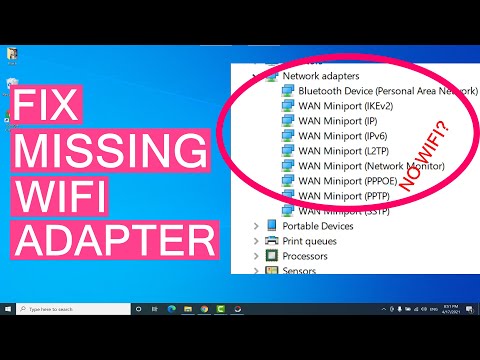
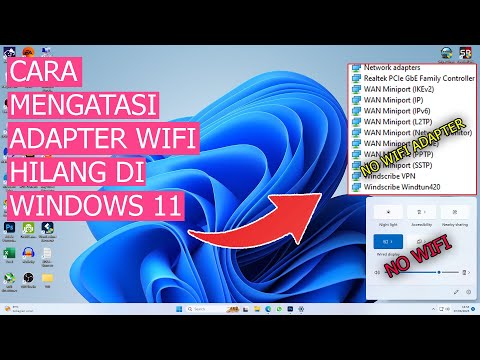
Next, peek into your device manager. This is where your laptop's hardware reveals itself. Search for "Device Manager" in your Windows search bar or locate it in your system settings. Expand the "Network adapters" section. Do you see your wireless network adapter listed? If it has a yellow exclamation mark, it signals a problem. This can mean driver issues.
Driver Dilemmas: Updating Your Connection
Drivers are essential software "translators" that allow your laptop to converse with its hardware. Outdated or corrupted drivers can certainly wreak havoc on your WiFi connection. Therefore, updating your network adapter driver is a primary troubleshooting step.
Here's how: right click on your network adapter in Device Manager. Select "Update driver." Choose "Search automatically for drivers." Windows will scour the internet for the latest driver. Hopefully, that resolves the situation. If that fails, you might need to download the driver directly from the manufacturer's website. Find your laptop model online. Visit the support or driver’s section. Download and install the appropriate driver for your operating system.
Router Rendezvous: Checking Your Gateway
Even with a perfectly functioning network adapter, your laptop still needs a connection to the router. It is crucial to check your router. Rebooting your router can often resolve temporary glitches. Unplug the router's power cord. Wait about 30 seconds. Plug it back in. Give it a few minutes to fully restart.
However, if a router restart doesn't help, further investigation is warranted. Consider your router's settings. Is the WiFi enabled? Are there any restrictions on the number of devices connected? Occasionally, a router's firewall could be interfering. Consult your router's manual or online support resources for advanced troubleshooting tips.
A Deeper Dive: Advanced Solutions
Sometimes, standard fixes aren't enough. Don't lose hope. Advanced solutions might be necessary.
- Network Reset: Windows has a network reset function. It’s a powerful tool. Navigate to your network settings. Select the "Network reset" option. This will uninstall and reinstall all network adapters, returning their settings to default.
- Hardware Check: If all else fails, a hardware problem is a possibility. Your WiFi adapter might be faulty. This is more uncommon than driver issues. If you're comfortable with it, you can open your laptop to inspect the adapter.
- Professional Help: If you're not tech-savvy, seek professional assistance. A computer repair technician can diagnose and fix hardware problems. They have the necessary expertise. Their resources for repair include parts and tools.
Keeping the Connection Alive: Prevention is Key
Once you've vanquished your WiFi woes, take steps to prevent future problems.
- Keep Drivers Updated: Regularly update your network adapter drivers. Windows Update often does this automatically. However, it's good to stay proactive.
- Secure Your Router: Secure your WiFi network with a strong password. Change the default router username and password. This prevents unauthorized access.
- Monitor Your Network: Keep an eye on your network's performance. Look for any unusual drops in speed. This helps to identify potential issues quickly.
- Regularly Restart: Reboot your devices periodically. Restart your router and laptop for optimal performance. This is a simple, yet effective, practice.
The Final Word: Your WiFi Victory
Laptop WiFi troubles can be frustrating. However, they’re usually solvable. Following these troubleshooting steps, you can often get back online quickly. Remember, each problem has a solution. Don't give up! Armed with these tips, you can reclaim your connection and enjoy seamless browsing, streaming, and communication. You are now equipped to conquer your laptop's WiFi darkness. Go forth and connect!
Laptop WiFi Nightmare? This ONE Trick Will SHOCK You!WiFi Nightmare? Fix Your Laptop's Dead Card NOW!
Welcome, fellow digital adventurers! Are you staring into the abyss of a dead WiFi connection, your laptop a useless brick in a world overflowing with cat videos and online shopping? That frustrating feeling of being cut off? We've all been there. It’s like being stranded on a desert island, only instead of coconuts, you’re craving access to your email. But more importantly, you need your laptop operational. Don't worry, because we're here to navigate the treacherous waters of dead WiFi cards and get you back online. Think of this as your ultimate guide, your pocket-sized repair manual for the digital age. Let's resurrect that connection, shall we?
1. The WiFi Wraith: Recognizing the Signs of a Dying WiFi Card
Before we grab our metaphorical screwdrivers, let's diagnose the problem. Is it truly a dead WiFi card? Let's be honest, sometimes it's a simple software glitch, not a hardware heart attack. Here's what to look out for:
- No WiFi Networks Detected: See absolutely nothing when you click the WiFi icon? It's like your laptop’s radar is turned off.
- Intermittent Connectivity: Constantly disconnecting, dropping signal like a clumsy waiter? A flickering connection is a warning sign.
- Slow Speeds (That Shouldn't Be): Downloading at a glacial pace when you have a lightning-fast internet plan? Something's definitely amiss.
- "WiFi Adapter Not Found" Errors: The dreaded message from the digital gods themselves. This spells trouble, folks.
- The "X" of Doom: That little red "X" on your WiFi icon. It's like a digital death sentence (at least for your connection).
If you recognize one or more of these symptoms, our WiFi card might be slowly sinking into digital oblivion. Let's move on to the next stage: identifying the problem.
2. Is It the WiFi Card, or Something Else? A Detective's Approach
Before you start tearing your laptop apart, rule out the simple stuff. Consider these points:
- Restart Your Laptop: Yes, it’s cliché, but it works sometimes. Think of it as a defibrillator for your laptop.
- Check Your Router: Is your router even on? Is it broadcasting a WiFi signal? Check for flashing lights and, if necessary, reset it. Sometimes, your router is the real problem.
- Other Devices Working? Are your phone and other devices connecting to the WiFi successfully? If so, the issue is likely with your laptop, pointing squarely at the WiFi card.
- Driver Issues: Outdated or corrupted drivers can wreak havoc. We'll touch on that shortly.
If you've done the basic troubleshooting and still have no WiFi, it's very possible that the WiFi card itself is to blame. But fear not! We'll fix it.
3. Driver Dilemmas: The Silent Culprit Behind WiFi Woes
Drivers are the software "translators" that allow your laptop to communicate with its hardware. Think of them as the secret language your computers use to communicate with each other. If the WiFi card's driver is corrupted, missing, or outdated, it's like your laptop suddenly forgot how to speak WiFi.
- Updating Drivers: Search for "Device Manager" in your Windows search bar. Expand "Network adapters," right-click your WiFi adapter, and select "Update driver." Choose the "Search automatically for drivers" option.
- Reinstalling Drivers: If updating doesn't work, uninstall the driver and restart your laptop. Windows will often reinstall a generic driver.
- Downloading Drivers from the Manufacturer's Website: This is especially important if you have an older laptop or you're still stuck: Visit the manufacturer's website (e.g., Dell, HP, Lenovo) and download the latest drivers for your specific model.
Driver issues can be frustrating, but often, fixing them is like giving your laptop a new voice.
4. Hardware Hurdles: When the WiFi Card Fails Completely
If software solutions don't work, it's time to get our hands dirty. This is the point where we consider that the Wi-Fi card itself might be the problem. Replacing a WiFi card itself is generally a straightforward process, assuming you're comfortable working with the inner workings of your laptop.
- Finding a Replacement: The first step is to identify the correct WiFi card for your laptop. Search your laptop's model on sites like Amazon or Newegg. Make sure the replacement is compatible with your laptop.
- Opening Up Your Laptop: This is where it can get a little tricky. Different laptops have different methods of access. Check your laptop's service manual which can be freely found on the internet. The general process is opening the laptop with the correct-sized screwdriver.
- Locating the WiFi Card: It's usually located under a small cover, often near the battery or on the bottom of your laptop. It's a small, rectangular card.
- Removing the Old Card: The card will be connected to the mini-PCIe slot. Unscrew it and gently remove the antennas (small wires) attached to the card. Note their position for reattachment.
- Installing the New Card: Insert the new card into the slot, secure it with the screw, and reattach the antennas. The correct order of attachment is key!
This is a bit like performing surgery on your laptop.
5. The Power of External USB WiFi Adapters: A Temporary Savior
If you are uncomfortable with the above steps, or in a pinch, there is a simpler solution. External USB WiFi adapters are a lifesaver. You simply plug them into a USB port, and they often install drivers automatically:
- Plug and Play: Most adapters are incredibly easy to use. Just plug them in, and they automatically install the drivers.
- Cost-Effective: They are relatively inexpensive, making them a good temporary fix.
- Versatile: They can provide a significant performance boost, especially with newer standards like 802.11ac or 802.11ax.
Think of these as a crutch when your WiFi is injured. They get you back on your feet immediately.
6. Troubleshooting Tips: What If It Still Doesn't Work?
Sometimes even the best tactics fail, and the demons of technology can be infuriating. If you've tried everything and still have no WiFi, consider these final solutions:
- Check the Physical Connections: Make sure the antennas are securely connected to the WiFi card. Sometimes, a loose connection is the problem.
- BIOS Settings: Ensure the WiFi card is enabled in your computer's BIOS settings. This is a longshot, but possible.
- Factory Reset (Last Resort): As a last resort, consider resetting your laptop. This will remove all your files, so back them up first!
- Professional Help: If everything else fails, it's time to call in the experts. Find a reputable computer repair shop near you.
7. Preemptive Measures: Keeping Your WiFi Card Healthy
Wouldn't it be great if this never happened again? Here’s some advice to keep the demons at bay:
- Keep Your Drivers Updated: Regularly check for driver updates.
- Avoid Extreme Temperatures: Don't expose your laptop to extreme heat or cold.
- Handle Your Laptop With Care: Avoid dropping your laptop or spilling liquids on it.
- Regular Cleaning: Dust can accumulate inside your laptop. Consider cleaning it regularly.
- Use a Surge Protector: Protect your laptop from power surges.
The more you're proactive, the less likely you'll have to deal with the WiFi gods.
8. Diving Deeper: Uncovering Advanced Troubleshooting Techniques
For those of you who are up for a challenge, here are a few advanced techniques for the true tech enthusiasts.
- Network Reset: In Windows, a network reset can clear a lot of temporary network problems.
- System File Check: Run a System File Checker (SFC) scan to find and repair corrupted system files.
- Boot in Safe Mode with Networking: This can help diagnose whether a third-party program is interfering with your WiFi.
- Consider the Antenna: Are your antennas in good condition? If they are damaged, then replacing your WiFi card is next.
9. Avoiding Common Pitfalls: Mistakes to Dodge
- Forgetting to Disconnect Power: Always unplug your laptop and disconnect the battery before opening it up.
- Forcing Connections: Gentle is key when working with delicate components.
- Ignoring ESD Protection: Static electricity can fry components. Use an anti-static wrist strap, or ground yourself.
- Not Backing Up Your Data: Always back up your data before attempting any major repairs or factory resets.
10. The WiFi Card's Life Cycle: When to Give Up
Eventually, every WiFi card reaches its end. But it doesn't have to be your fault. How do you know when you need to retire your WiFi card and just replace it?
- Repeated Failures: If you've tried everything and the card keeps failing, it's likely time for a replacement.
- Physical Damage: Obvious physical damage to the card is a clear sign
How To Fix Wireless Adapter Missing In Windows 10 Get WiFi Adapter Back
By Sandeep Singh How To Fix Wireless Adapter Missing In Windows 10 Get WiFi Adapter Back by Sandeep Singh
Cara Cabut WIFI Card ASUS TUF Fix Masalah WIFI Hilang Asus TUF

By Kenny DP - Tech & Games Cara Cabut WIFI Card ASUS TUF Fix Masalah WIFI Hilang Asus TUF by Kenny DP - Tech & Games
Cara Mengatasi Adapter WiFi Yang Hilang Di Windows 11 Pc atau laptop
By WINTECH id Cara Mengatasi Adapter WiFi Yang Hilang Di Windows 11 Pc atau laptop by WINTECH id

Title: Fix Asus Wi-Fi Not Working in Windows 1087 2025
Channel: TechFixIT
Fix Asus Wi-Fi Not Working in Windows 1087 2025 by TechFixIT
Wifi Not Found
WiFi Nightmare? Fix Your Laptop's Dead Card NOW!
We've all been there. You're in the middle of an important video call, trying to stream your favorite show, or simply attempting to get some work done, and the dreaded spinning wheel of death appears. Your Wi-Fi connection, once a reliable companion, has vanished, leaving you stranded in digital limbo. More often than not, the culprit isn't your internet service provider, faulty router, or even a distant signal. It's a far more personal, and frequently fixable, problem: your laptop's Wi-Fi card. Let’s dive in and get you back online.
Understanding the Wi-Fi Card: Your Laptop's Invisible Connector
Think of your Wi-Fi card as the unassuming translator between your laptop and the boundless expanse of the internet. It's a small, often unnoticed component within your machine, responsible for sending and receiving the radio waves that carry your data. When things go south, it can manifest in several ways, from complete disconnection to intermittent drop-outs and frustratingly slow speeds. Identifying the root cause is the first step toward reclaiming your digital freedom.
Is it Really a Wi-Fi Card Problem? Troubleshooting Before You Fix
Before you begin a deep dive into potential solutions, let's rule out some common culprits. A bit of preliminary detective work can often save you time and frustration.
The Obvious Checks: Begin with the basics. Is your Wi-Fi switch (often a physical switch on the side or a function key on your keyboard) turned on? Are you in range of your Wi-Fi network? Ensure that the wireless network is broadcasting and broadcasting on the correct connection. Sometimes it is the simple things that need to be done first!
Reboot Your Devices: Restarting your laptop and your router is often the digital equivalent of a reset button. This simple action can clear temporary glitches and re-establish connections.
Check Other Devices: Do other devices in your home connect to Wi-Fi without issue? If so, the problem is likely localized to your laptop.
Inspect Your Network Configuration: Make sure your laptop is configured to connect to the correct Wi-Fi network and, of course, that you have entered the correct password.
Diagnosing a Faulty Wi-Fi Card: Pinpointing the Problem
If the preliminary checks fail, it's time to delve deeper. Here's how to diagnose a potentially faulty Wi-Fi card:
Device Manager: Your Windows Detective: Windows Device Manager is a powerful tool for diagnosing hardware issues. To access it, type "Device Manager" into the Windows search bar and open the application. In the Device Manager window, expand "Network Adapters." You should see your Wi-Fi card listed there, often with its model number. If you see a yellow exclamation mark or a red "X" next to the Wi-Fi card, it indicates a problem.
Error Codes: Deciphering the Message: If an error code is displayed in Device Manager, take note of it. Search the web for the error code; this will often lead you to specific troubleshooting steps relevant to your Wi-Fi card model and the issue you are experiencing.
No Wi-Fi Card Listed: If your Wi-Fi card isn't listed at all in Device Manager, it could mean it's disabled, not recognized, or has experienced a complete hardware failure.
Hardware Diagnostics: Some laptop manufacturers provide built-in hardware diagnostic tools that can test various components, including the Wi-Fi card. Check your laptop's documentation or the manufacturer's website for instructions on running these tests.
Troubleshooting Steps to Revive Your Wi-Fi Connection
With the problem identified, let's explore a range of solutions to breathe life back into your wireless connection.
Enable or Re-enable the Wi-Fi Card: Sometimes, the Wi-Fi card is simply disabled in Windows. In Device Manager, right-click on your Wi-Fi card and select "Enable Device" if it's disabled. If it's already enabled, try "Disable Device," then "Enable Device" again to reset it.
Update Your Wi-Fi Card Driver: Outdated drivers are a common source of Wi-Fi problems. In Device Manager, right-click on your Wi-Fi card, select "Update driver," and choose the option to search automatically for updated driver software.
Roll Back Your Wi-Fi Card Driver: If a recent driver update caused the problem, you can roll back to a previous version. In Device Manager, right-click on your Wi-Fi card, select "Properties," go to the "Driver" tab, and click "Roll Back Driver" if the option is available.
Uninstall and Reinstall Your Wi-Fi Card Driver: This process can often resolve driver-related issues. In Device Manager, right-click on your Wi-Fi card, select "Uninstall device," and restart your laptop. Windows should automatically reinstall the driver upon restart. If not, go back to the device manager and click "Scan for hardware changes". Windows should find the driver automatically and reinstall it.
Network Reset: Windows offers a network reset option that can restore network settings to their default values. Go to Settings > Network & Internet > Status > Network reset and follow the prompts.
Run the Windows Network Troubleshooter: Windows has a built-in troubleshooter that can automatically diagnose and fix many network-related problems. Type "Network troubleshooter" into the Windows search bar and run the troubleshooter.
Physical Solutions: When Software Fails
Sometimes, the problem lies beyond the realm of software. A physical issue with the Wi-Fi card itself or its connections may be preventing it from functioning correctly. Proceed with caution if you're not comfortable working with the internal components of your laptop; seek professional help if needed.
Re-seating the Wi-Fi Card: If you're comfortable opening your laptop (consult your laptop's manual for instructions), you can try re-seating the Wi-Fi card. The Wi-Fi card is usually a small card located in the inside of your laptop. The Wi-Fi card will have two small wires going to it. The wires will have small connectors. They can easily be disconnected and reconnected. Shut down your laptop completely. Unplug the power adapter. Open your laptop. Locate the Wi-Fi card (usually in the area near the screen hinge) and gently remove it from its slot. Clean the contacts with a dry, anti-static brush. Reinsert the card firmly into its slot. Close up your laptop and restart.
Antenna Issues: Check to see if the small wires that plug into the Wi-Fi card have come lose. If they have, shut down the laptop completely, unplug the power adapter and reconnect the small wires. These wires are delicate and easily become disconnected.
Replace the Wi-Fi Card: If the Wi-Fi card is physically damaged or has completely failed, replacing it may be the only solution. New Wi-Fi cards are generally inexpensive and often readily available online. Choose a card that is compatible with your laptop model and operating system.
Preventive Measures: Keeping Your Wi-Fi Card Happy
Once you have your Wi-Fi connection back up and running, take steps to prevent future problems.
Keep Your Drivers Updated: Regularly update your Wi-Fi card drivers to ensure compatibility and stability.
Protect Your Laptop from Physical Damage: Avoid dropping your laptop or exposing it to extreme temperatures or moisture.
Keep Your Laptop Clean: Dust and debris can accumulate inside your laptop and potentially interfere with its components. Regularly cleaning your laptop's vents can help prevent overheating and other issues.
Run Antivirus Software: Malware can sometimes interfere with your network connection. Ensure your antivirus software is up to date and run regular scans.
When to seek professional help:
If you've tried the above troubleshooting steps without success, it's time to consider professional assistance. A computer repair technician can diagnose more complex hardware issues and perform more advanced repairs.
