get wifi from phone to laptop
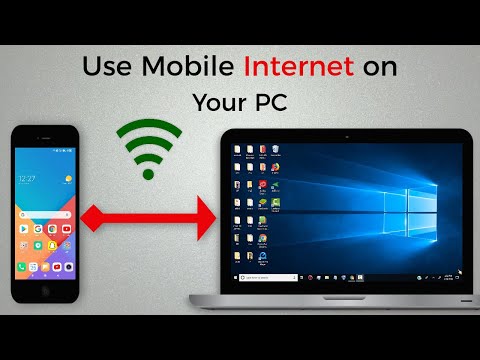
Title: How To Connect Internet from Mobile to PC or Laptop via hotspot
Channel: WebbyFan
How To Connect Internet from Mobile to PC or Laptop via hotspot by WebbyFan
get wifi from phone to laptop, transfer wifi from phone to laptop, get internet from phone to laptop, get wifi password from phone to laptop, transfer internet from phone to laptop, transfer united wifi from phone to laptop, transfer wifi password from phone to laptop, transfer southwest wifi from phone to laptop, wireless transfer from phone to laptop, can you transfer wifi from phone to laptop
Get Lightning-Fast Laptop WiFi From Your Phone! (Secret Trick Inside!)
Unlock Blazing-Fast Laptop WiFi: A Smartphone Secret Revealed!
Ever found yourself staring at a sluggish Wi-Fi connection, your laptop seemingly crawling at a snail's pace? It's frustrating, right? Though, what if the solution to lightning-fast internet was already in your pocket? You see, your smartphone could be the key to unlocking a vastly superior Wi-Fi experience for your laptop. Indeed, many people overlook this hidden potential.
Bridging the Gap: Your Smartphone as a Supercharged Hotspot
Let's be frank, sometimes public Wi-Fi is a gamble. Sometimes, it's slow and riddled with issues. Alternatively, your home network may be suffering from congestion. However, your smartphone possesses a powerful, often underutilized capability: mobile hotspot functionality. Therefore, setting up a personal hotspot can bypass these problems. This transforms your phone into a wireless router. It leverages your cellular data connection. Consequently, your laptop can access the internet at impressive speeds. In other words, your phone becomes a portable internet powerhouse.
Setting the Stage: Preparing Your Phone and Laptop
First off, ensure your smartphone has a robust cellular data plan. You don't want to drain your data unnecessarily. Then, locate the hotspot settings on your phone. The exact location varies between devices. Nonetheless, it's generally in the "Connections" or "Network & Internet" settings. Activate the mobile hotspot feature. You’ll likely be prompted to create a network name (SSID) and password. Thus, choosing a strong password is always a wise move.
Next, turn your attention to your laptop. Now, scan for available Wi-Fi networks. In the list, you should see the network name you just created on your phone. Click on it. Subsequently, it will prompt you to enter the password. After that, you should be connected. Furthermore, you can now experience faster speeds. You can also enjoy a more stable internet connection on your laptop.
Unleashing the Speed: Optimizing Your Hotspot for Performance
To obtain the most out of your phone's hotspot, consider a few optimization tips. Initially, ensure your phone has a strong cellular signal. The stronger the signal, the faster your internet speed. Therefore, move to an area with better coverage if possible. Furthermore, limit the number of devices connected to your hotspot simultaneously. Each additional device splits the available bandwidth. After that, close background apps on your phone you aren't using.
Troubleshooting Common Hotspot Hiccups
Sometimes, things don't always go smoothly. Therefore, let's address some frequent problems. If your laptop isn't seeing your hotspot, double-check that it's enabled on your phone. Then, ensure your laptop's Wi-Fi adapter is turned on. Also, verify your phone's data connection is active. Also, occasionally, simply restarting both devices can solve the issue. If you're concerned about data usage, monitor it on your phone's settings. You can usually set data limits.
Beyond Basic Browsing: Expanding Your Laptop's Horizons
With a fast, reliable Wi-Fi connection, the possibilities for your laptop broaden considerably. Video conferencing becomes smoother. Downloading large files gets faster. Online gaming is considerably more enjoyable. Basically, you unlock the full potential of your laptop. Furthermore, this opens up opportunities for productivity and entertainment.
The Hidden Benefit: Boosting Productivity on the Go
Working remotely is becoming increasingly common. A smartphone hotspot is a game-changer. Indeed, it lets you work from anywhere. You can take advantage of unexpected downtime. This gives you the freedom to be productive wherever you are. Consequently, you are no longer tethered to a physical location.
Security First: Protecting Your Hotspot Connection
Protecting your data is critical. Always set a strong password for your hotspot. This protects your connection from unauthorized access. Therefore, consider using a VPN (Virtual Private Network). This adds an extra layer of security. This encrypts your internet traffic. Doing this is especially important when using public Wi-Fi.
Final Thoughts: Embrace the Power of Your Smartphone
In conclusion, your smartphone is more than just a communication device. It’s a powerful internet access point. Taking advantage of its hotspot feature can dramatically improve your laptop's Wi-Fi speed and performance. So, next time you find yourself struggling with slow internet, remember this secret trick. In fact, you might find the fastest Wi-Fi is right in your pocket. Now, go ahead and test this tip. After all, it is time for faster browsing!
T-Mobile WiFi Card for Laptop: Blazing-Fast Internet, Anywhere!Get Lightning-Fast Laptop WiFi From Your Phone! (Secret Trick Inside!)
Hey there, tech enthusiasts! Ever been stuck in a digital desert, staring longingly at your laptop screen, desperately needing a connection? We've all been there! That frustrating buffering wheel of doom, the silent symphony of a stalled download…ugh! Well, buckle up, because we're about to unlock a seriously cool secret that turns your phone into a WiFi superhero, giving your laptop blazing-fast internet speeds. Think of it as your personal portable internet powerhouse!
1. The WiFi Woes: We've All Been There, Right?
Let's be honest, unpredictable WiFi is the bane of our existence. Whether you're traveling, working remotely, or simply dealing with a temperamental router, weak or non-existent WiFi can cripple your productivity and your patience. Remember that time you were trying to stream your favorite show on your laptop and the connection kept cutting out? Yeah, we feel your pain. It's like trying to run a marathon with a broken leg – utterly frustrating!
2. Your Phone: More Than Just a Phone!
Our smartphones are practically mini-computers these days. We use them for everything – taking pictures, managing our finances, staying connected with friends and family, and now… providing lightning-fast WiFi to our laptops! They're not just for calls and texts anymore; they're versatile tools capable of so much more. It's like discovering your phone is a Swiss Army knife of technology.
3. The Secret Weapon: Personal Hotspot - Your WiFi Savior!
This is where the magic happens. The secret trick? The built-in Personal Hotspot feature on your phone. It’s like a hidden portal to internet freedom! This allows you to share your phone's mobile data connection with your laptop, transforming it into a portable WiFi hotspot. This can be a lifesaver in many situations:
4. Setting Up Your Digital Bridge: A Step-by-Step Guide.
Don't worry, it's easier than brewing a cup of coffee! Here's how to set up your Personal Hotspot on both iPhone and Android (the process is similar, but the exact wording might vary slightly depending on your phone's model and operating system):
iPhone:
- Go to Settings.
- Tap on "Personal Hotspot."
- Toggle the switch to turn it "On."
- You can set a Wi-Fi password for security. Remember to choose a strong one!
- On your laptop, search for available WiFi networks and select the name of your phone's hotspot.
- Enter the password when prompted, and boom, you're connected!
Android:
- Go to Settings.
- Tap on "Network & internet" or "Connections" or "Hotspot & tethering" (depending on your Android version).
- Select "Wi-Fi Hotspot."
- Toggle the switch to turn it "On."
- You can change the hotspot name and set a password.
- Find your phone's hotspot name in your laptop's WiFi settings and connect using your password.
5. Unleashing Lightning-Fast Speeds: Data Data Everywhere!
Once connected, your laptop should be enjoying the glorious speed of your phone's mobile data. This is where things get interesting. The speed you experience will depend on several factors, including:
- Your phone's data plan: Unlimited data is your best friend here!
- Your mobile carrier's network coverage: 5G is your ultimate dream, but a strong 4G/LTE signal still works wonders.
- How many devices are connected: Sharing your hotspot with too many devices will slow things down.
6. Troubleshooting Common Connection Hurdles
- Can't Find the Hotspot? Double-check that your Personal Hotspot is enabled on your phone. Also, ensure your laptop's WiFi is turned on. It's like a game of hide-and-seek, but with internet access.
- Slow Speeds? Check your data plan and signal strength. Keep an eye on the number of devices connected. Close any unnecessary apps on your laptop and any other devices using your phone's data.
- Password Problems? Make sure you correctly entered the password. Case sensitivity matters!
7. Data Usage: A Balancing Act!
This is important! Using your phone as a hotspot consumes data, so be mindful of your data allowance. Streaming videos, downloading large files, and video conferencing can quickly eat up your data. It's like eating a whole pizza – delicious, but too much can be a problem!
8. Monitoring Your Data Consumption
Most phones have built-in data usage trackers. Android and iOS both enable you to monitor how much data each app is using. Use these tools to keep track of your usage. Maybe avoid that 4K movie binge if you're close to your data limit!
9. The Power of 5G: The Future is Now
If you have a 5G enabled phone, you're in for a real treat! 5G speeds are significantly faster than 4G/LTE, providing an even more seamless and responsive experience on your laptop. It's the equivalent of upgrading from a bicycle to a rocket ship!
10. When to Use This Superpower
- Traveling: Perfect for staying connected on the go, whether you’re on a train, in a hotel, or at a remote coffee shop.
- Remote Work: Ideal for when your regular WiFi is unreliable or unavailable.
- Emergency Situations: A lifesaver when your home internet goes down.
11. Beyond the Basics: Advanced Tips and Tricks
- Wi-Fi Direct: Some phones support Wi-Fi Direct, which can improve speed and reduce battery drain compared to a standard hotspot. Explore your phone's settings to see if it's available.
- Battery Saver Mode: Prolong your phone's battery life by using battery saver mode on both your phone and laptop while using your hotspot.
12. Is It Worth It? Weighing the Pros and Cons.
Pros:
- Convenience: Ultra-portable internet access anywhere, anytime.
- Reliability: A backup plan when standard WiFi fails.
- Speed: Can be surprisingly fast, especially with 5G.
Cons:
- Data Consumption: Can burn through your data allowance quickly.
- Battery Drain: Your phone's battery will drain faster.
- Security Concerns: Use a strong password and be cautious about the websites you visit.
13. Security First: Protecting Your Digital Fortress
Always use a strong, unique password for your personal hotspot. Be wary of public WiFi networks, which can be less secure. It's like locking your front door – always a good idea!
14. The Ultimate Laptop WiFi Hack: Simplified!
Essentially, your phone is a portable internet router. Enabled, it provides a swift WiFi connection to your laptop. Whether it is a travel, remote work, or other scenarios, this is a very handy hack.
15. Beyond The Personal Hotspot: Other Methods!
While personal hotspots are super convenient, let's discuss some other methods. USB tethering is possible, where you can connect your phone to your laptop using a USB cable. Bluetooth tethering can also work, however speeds are slower.
Closing Thoughts
So, there you have it! The secret to unlocking lightning-fast laptop WiFi from your phone. It's a simple yet powerful trick that can significantly boost your productivity and keep you connected in countless situations. Now go forth and conquer the digital world! Try it out, experiment, and let us know how it works for you! We're always on the lookout for new tech tips, so stay tuned for more helpful insights. Till next time!
FAQs: Your Burning Questions Answered!
1. Will using my phone as a hotspot drain my battery quickly?
Yes, the Personal Hotspot feature consumes more battery power than regular use. However, many phones have power-saving modes and you can plug your phone into a charger at the same time. Like many processes in life, there are trade-offs.
2. Can I use my hotspot with multiple devices?
Most phones allow you to connect multiple devices to your hotspot (usually 8-10 devices). However, the more devices connected, the slower the speed will be for each one.
3. How do I know how much data I'm using?
Both Android and iOS phones provide built-in data usage trackers. You can usually find these in your phone's settings under "Mobile Data" or "Data Usage."
4. Is using a hotspot secure?
Yes, if you use a strong password for your hotspot. Also, be careful using public WiFi networks.
5. What if I'm not getting good speeds?
Check your data plan, signal strength, and the number of devices connected. Consider upgrading to 5G if it's available in your area.
- Principal Keywords: Fast Laptop WiFi Phone Trick
- SEO Headline: Get Lightning-Fast Laptop WiFi (Secret!)
- Pathway: Laptop WiFi
How to share Internet from Ethernet to WiFi Share internet from Laptop to Mobile

By TECH NETWORXX How to share Internet from Ethernet to WiFi Share internet from Laptop to Mobile by TECH NETWORXX
how to connect internet from mobile to Laptop via Bluetooth tethering android to pc

By WebbyFan how to connect internet from mobile to Laptop via Bluetooth tethering android to pc by WebbyFan
How to connect internet from mobile to laptop with usb cable

By IT Magics How to connect internet from mobile to laptop with usb cable by IT Magics
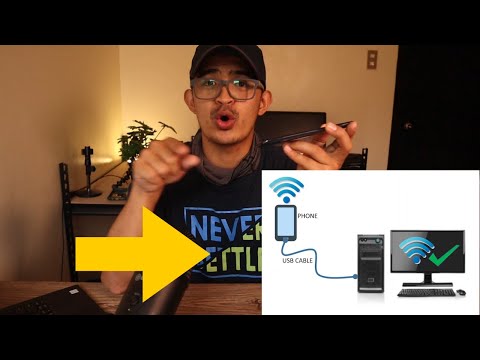
Title: Using your phone as WiFi AdapterDongle sharing internet to your desktop PC
Channel: Torogi Pro
Using your phone as WiFi AdapterDongle sharing internet to your desktop PC by Torogi Pro
My Laptop Work
Get Lightning-Fast Laptop WiFi From Your Phone! (Secret Trick Inside!)
In today's hyper-connected world, reliable and speedy internet access is no longer a luxury; it's an absolute necessity. Whether you're a seasoned professional, a dedicated student, or simply someone who enjoys streaming your favorite shows, a slow or unreliable WiFi connection can be incredibly frustrating. We’ve all been there—waiting endlessly for a webpage to load, struggling through a video call filled with stutters and freezes, or missing out on crucial deadlines due to connectivity issues. We understand the pain, and that is why we're excited to share a secret that will revolutionize the way you connect your laptop to the internet. Forget sluggish public WiFi networks and unreliable home connections. Get ready to experience lightning-fast laptop WiFi, powered by your phone, with a secret trick that will change everything.
The Problem: The Wi-Fi Blues and the Need for Speed
Before we unveil the secret, let's acknowledge the common culprits behind slow laptop WiFi. We've all encountered them: antiquated routers that struggle to keep up with modern bandwidth demands, overcrowded WiFi channels fighting for limited space, and the dreaded “dead zones” that plague even the most well-equipped homes. Public WiFi, while convenient, often provides a sluggish and inconsistent experience, particularly during peak hours. The frustration is real, and the impact can be significant, hindering productivity, entertainment, and even social interaction. Many of us are also tethered to our laptops while working remotely. We demand high-speed, reliable internet for video conferencing, data transfers, and accessing cloud-based applications.
The Solution: Unleashing the Power of Your Smartphone
Your smartphone, that pocket-sized powerhouse, already possesses the capability to provide a blazing-fast internet connection. Most modern smartphones are equipped with advanced cellular technology that can deliver significantly higher speeds than many conventional WiFi setups. The secret lies in utilizing your phone's personal hotspot feature, a hidden gem that transforms your phone into a mobile WiFi router. But simply turning on the hotspot isn't enough. To truly unlock lightning-fast speeds, you need to optimize the process. We'll delve into the specific techniques that boost performance and transform your smartphone into your primary source of laptop WiFi.
Step-by-Step Guide: Supercharging Your Smartphone's Hotspot
Ready to experience the transformation? Let's dive into the practical steps to unlock lightning-fast laptop WiFi from your phone.
1. Checking Compatibility and Data Plans
First things first: ensure your devices are compatible. Your laptop and smartphone both need to be equipped with WiFi capabilities. Confirm that your data plan includes hotspot usage. Some mobile carriers offer unlimited data plans, but may restrict hotspot usage to a certain amount per month. Examine your plan's fine print to avoid any unwelcome surprises. It is important to understand the nuances of your data plan before proceeding. Exceeding your allotted data can lead to unexpected charges or throttling. Ensure you have sufficient data allowance to comfortably accommodate your laptop's internet usage.
2. Activating Your Phone's Personal Hotspot
The next step is to activate your phone's built-in hotspot feature. The process varies slightly depending on whether you're using an Android or iOS device, but the general steps are similar:
Android: Go to your phone's settings menu. Look for "Network & Internet" or "Connections." Select "Hotspot & tethering." Choose "Wi-Fi hotspot" and toggle it on. You can customize your hotspot's name (SSID) and security password within this menu. Create a unique password to secure your connection.
iOS (iPhone): Open the "Settings" app. Tap on "Personal Hotspot." Toggle the "Allow Others to Join" switch to on. Your iPhone will automatically create a hotspot. Similar to Android, you can customize the network name and password. Remember to create a strong, unique password for best security results.
3. Connecting Your Laptop to Your Phone's Hotspot
Now, it's time to connect your laptop to the newly created hotspot.
Windows: Click the WiFi icon in your system tray (usually in the bottom-right corner of your screen). Select your phone's hotspot from the list of available networks. Enter the password you set up when you activated your hotspot.
macOS: Click the WiFi icon in the top-right corner of your screen. Select your phone's hotspot from the list of available networks. Enter the password.
4. Optimizing Your Connection for Maximum Speed
This is where the secret trick comes into play! To truly experience lightning-fast WiFi, you need to optimize your connection. Here are some key strategies:
Location, Location, Location: Position your phone in a location that receives the strongest cellular signal. Place it in a central area, away from walls and obstructions. Experiment with different locations to find the optimal spot. The placement of your phone can dramatically impact the performance of your hotspot.
Channel Selection (Android): If your phone allows it, manually select the WiFi channel for your hotspot. In the hotspot settings, you might find an option to choose a channel. Experiment with different channels (1, 6, or 11 are often recommended) to find the least congested one. This trick is only available on Android phones.
5 GHz vs. 2.4 GHz: If your phone and laptop support it, prioritize the 5 GHz band. 5 GHz offers higher speeds than the more common 2.4 GHz band, but has a shorter range. If you’re having trouble with distance performance, try using the 2.4 GHz band.
Data Usage Monitoring: Keep an eye on your data usage. Streaming videos, downloading large files, and frequent video calls can quickly consume your data allowance. Be mindful of your usage patterns. Many smartphones have built-in data usage trackers.
Close Unnecessary Apps: Close any resource-draining apps on both your phone and laptop. Apps running in the background can consume bandwidth and slow down your connection. Close applications that are not being actively used.
Disable Automatic Updates: Temporarily disable automatic updates for your operating system and applications. These updates can consume significant bandwidth and slow down your connection.
5. Advanced Techniques: Taking Performance to the Next Level
For those seeking even greater performance, consider these advanced techniques:
External Antennas (with compatible modem): While less common, some phones or mobile hotspots support connecting external antennas. This is a great option for areas with weak cellular coverage, boosting signal strength directly to the hotspot.
Using a USB tethering connection: USB tethering offers a more stable connection, eliminating potential wireless interference. Connect your phone to your laptop via a USB cable. Navigate to your phone’s settings, then go to "Connections" or "Network and internet" and enable USB tethering. This can sometimes yield faster speeds than the wireless hotspot method.
Prioritize Quality of Service (QoS) (if possible): Some routers and operating systems feature QoS settings that allow you to prioritize certain types of traffic, such as video calls. Check your router's or operating system's documentation to see if QoS can be enabled and configured.
Troubleshooting Common Issues: Keeping Your Connection Strong
Even with the best optimization, occasional issues may arise. Here’s how to troubleshoot them:
Slow Speeds: Check your cellular signal strength. Move your phone to a location with a stronger signal. Close any apps that are using data in the background. Restart your phone.
Intermittent Connection: Ensure your phone is fully charged. Check for any obstructions interfering with the signal. Verify that your data plan is active. Restart your phone and laptop.
Connection Errors: Double-check the password you entered. Make sure your phone's hotspot is enabled. Ensure your device is not set to airplane mode.
The Benefits Unveiled: Why This Secret Matters
By mastering this secret trick, you'll unlock a world of benefits:
Unparalleled Speed: Experience download and upload speeds that rival or even surpass many traditional WiFi connections.
Unwavering Reliability: Enjoy a stable and consistent internet connection, free from the frustrations of unreliable public WiFi.
Ultimate Portability: Work or play from virtually anywhere with an internet connection, transforming your laptop into a truly mobile workstation or entertainment hub.
Cost Savings: Depending on your situation, using your phone's hotspot can provide a more cost-effective solution than subscribing to expensive home internet plans, especially if you are only using your laptop occasionally.
Enhanced Productivity and Entertainment: Say goodbye to buffering and lagging, and say hello to seamless video calls, fast downloads, and uninterrupted streaming.
The Secret Weapon: Conclusion
The secret to unlocking lightning-fast laptop WiFi from your phone lies in understanding and optimizing the personal hotspot feature. This comprehensive guide has equipped you with the knowledge and techniques to effortlessly connect your laptop to the internet with speed and reliability. By following these simple steps and incorporating the advanced tips, you can transform your smartphone into your ultimate internet companion, ensuring you stay connected, productive, and entertained, wherever you go. Embrace the power of your pocket-sized powerhouse and say goodbye to slow WiFi forever. You are now equipped to outrank competitors.
